How to Turn On Subtitles on Apple TV, Netflix, Disney+, and YouTube

By Trae Jacobs,

When you buy through our links, we may earn an affiliate commission.
You are watching a show and need the subtitles turned on. You can enable closed captions by following a few simple steps in your streaming app.
- For YouTube, look for the “CC” icon located just above the video timeline to turn captions on instantly. [1:00]
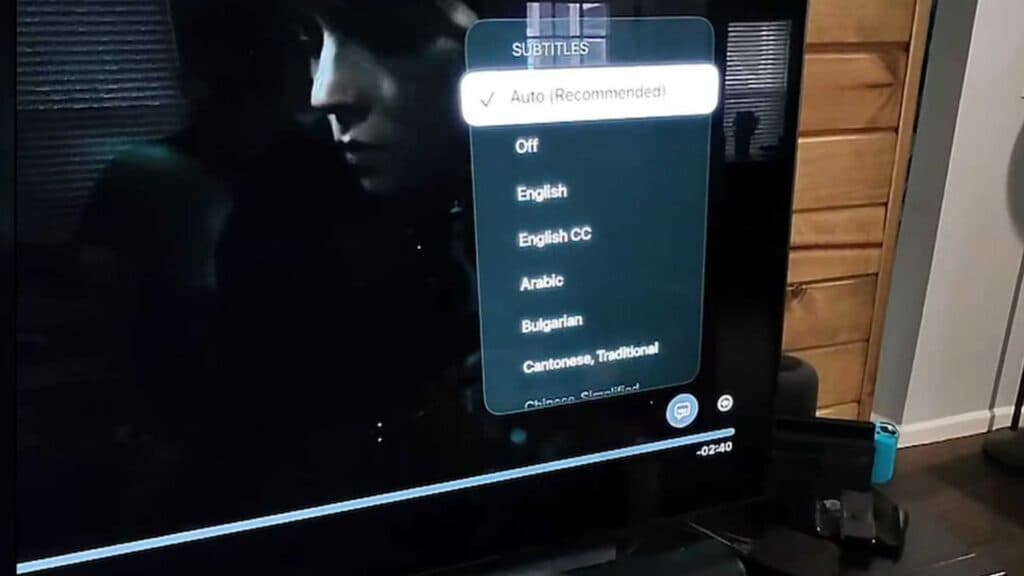
- On Apple TV, find and select the chat bubble icon positioned above the timeline, then choose your preferred language from the list. [1:27]
- In Netflix, locate the same chat bubble icon right above the timeline and select the subtitle track you want to use. [2:02]
- For Disney Plus, open the subtitles menu by selecting the icon above your timeline and choosing your language.
Ninja Tip: If your subtitles still aren’t appearing correctly, check your device’s global accessibility settings under Settings > Accessibility > Subtitles and Captioning to ensure they aren’t disabled at the system level.
If the captions are still not working properly, you can perform a device reset by going to Settings > System > Reset.
Keep Reading