How to Remove and Reinstall Apps on Apple TV

By Trae Jacobs,

When you buy through our links, we may earn an affiliate commission.
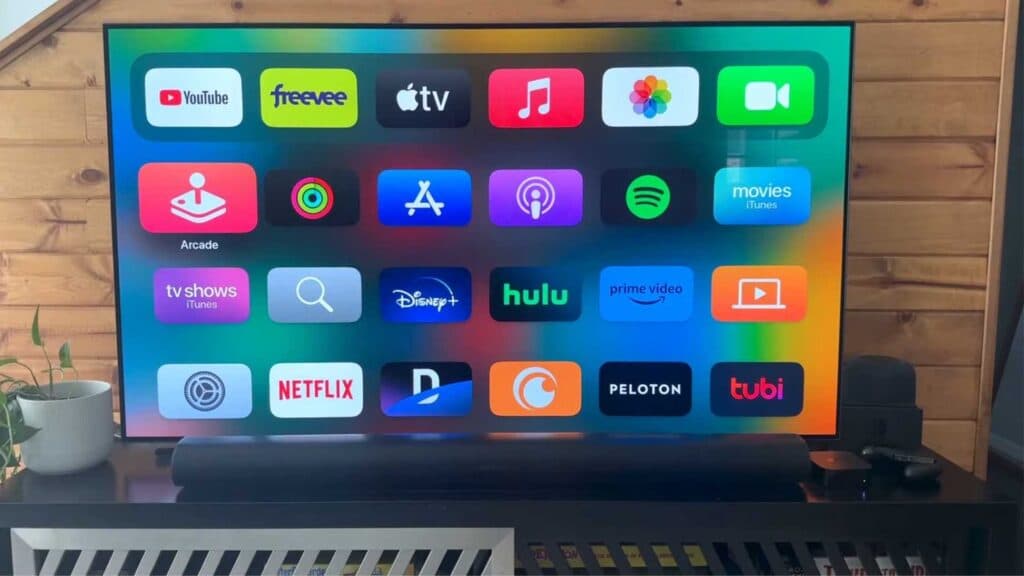
Your Apple TV home screen is cluttered with apps you no longer use. You can clear them out and reinstall them whenever you need to.
- Navigate to your home screen, highlight the app you want to remove, and press and hold the select button on your remote until the menu appears [0:09].
- Select the delete option from the menu and confirm your choice to remove the app [0:23].
- To add an app back, go to the search bar and type the name of the app you want to download.
- Select the app from the search results, choose the download button, and open it once the installation finishes.
Ninja Tip: If you have many apps, you can reorganize your home screen by holding the select button on an app and moving it to a new position or into a folder to keep your interface clean.
If these steps do not resolve your issues, perform a factory reset by navigating to Settings > System > Reset.
Keep Reading