How to Turn Off Subtitles on Apple TV

By Trae Jacobs,

When you buy through our links, we may earn an affiliate commission.
Subtitles or closed captions are currently displayed on your Apple TV screen. You can disable them by adjusting your system or app settings.
- If you are currently playing a video, pause it and select the closed caption icon directly on the player to turn them off [0:22].
- To disable them system-wide, navigate to your home screen and open the Settings app [0:34].
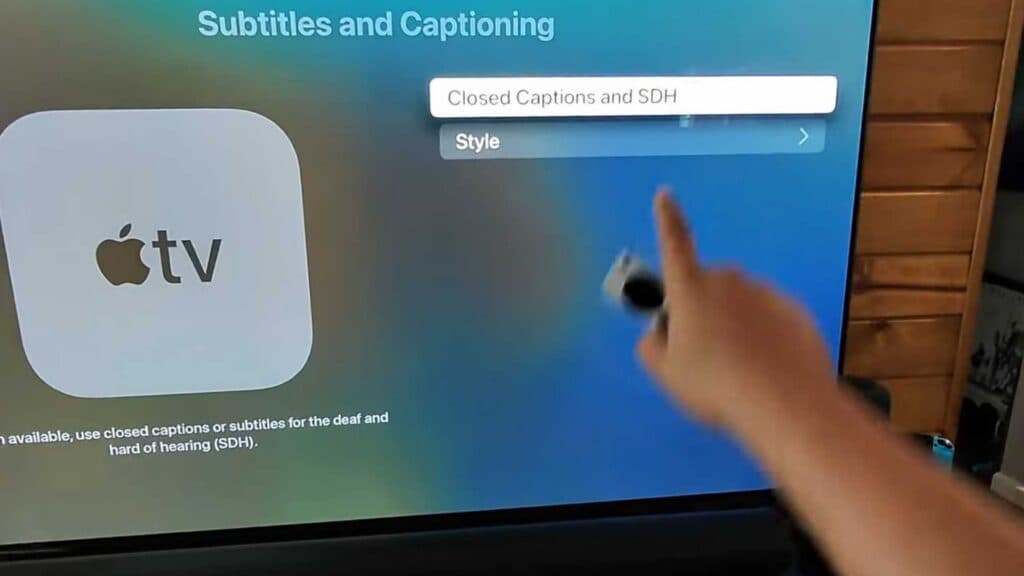
- Select Accessibility, then scroll down and choose Subtitles and Captioning to toggle the feature off [0:45].
- For individual apps like Netflix, open the specific app and select the chat bubble icon within the video player to turn off subtitles for that service.
Ninja Tip: You can quickly access accessibility shortcuts by triple-clicking the Menu or Back button on your Apple TV remote if you have that feature enabled in your settings.
If you still see captions, try a full reset by going to Settings > System > Reset.
Keep Reading