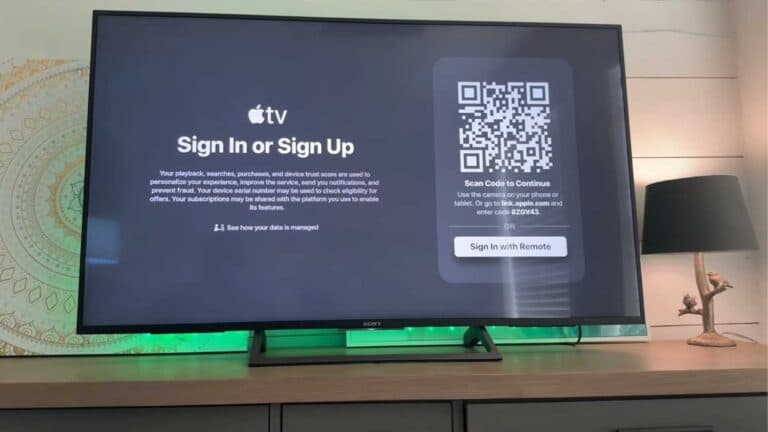
How to Switch Apple IDs on Apple TV 4K

By Trae Jacobs,

When you buy through our links, we may earn an affiliate commission.
You are currently using the wrong Apple ID on your Apple TV 4K. You can follow these steps to sign out of the current account and sign in with the correct one.
- Go to the Settings menu on your Apple TV and select Users and Accounts [0:12].
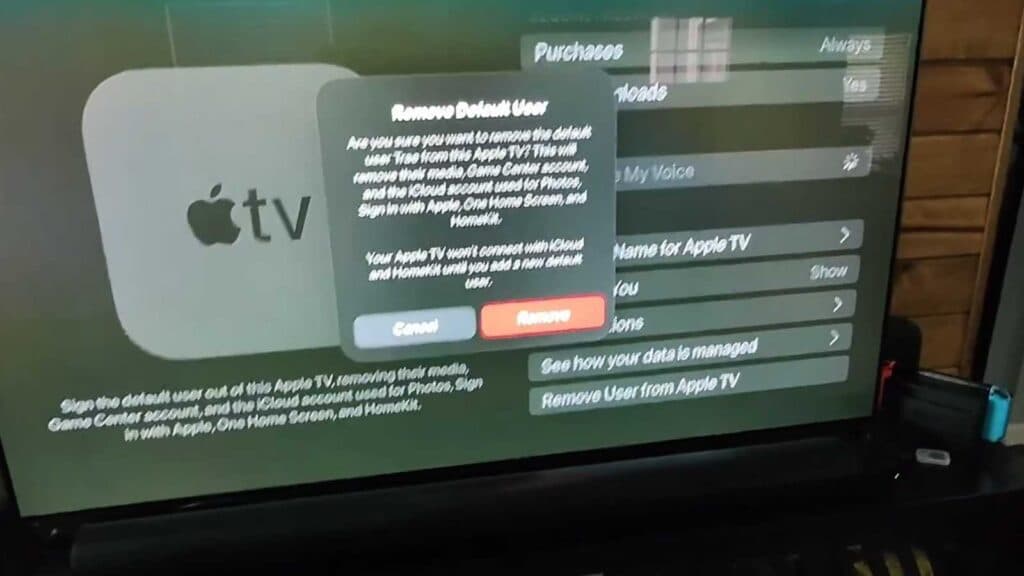
- Select the Default User account and scroll down to the bottom to choose Remove User from Apple TV [0:24].
- Confirm the removal of the account, which clears all associated media, Game Center, and iCloud data from the device [0:40].
- Navigate back to Users and Accounts and select Add Default User [0:56].
- Use your iPhone or iPad to automatically connect to the Apple TV, follow the on-screen prompts, and enter the verification code to sign in with your new Apple ID.
Ninja Tip: If you frequently switch between family members, you can use the multi-user feature in Settings > Users and Accounts > Multi-User to add additional accounts without removing the default one. This allows you to quickly swap profiles from the Control Center for personalized recommendations.
If you encounter persistent account conflicts, perform a full reset by going to Settings > System > Reset.
Keep Reading