How to Sign Out of Your Gmail Account on iPhone

By Trae Jacobs,

When you buy through our links, we may earn an affiliate commission.
You are signed into a Gmail account on your iPhone and want to remove it. You can easily sign out of your account by following these steps.
- Open the Gmail app and tap your profile picture or the first letter of your name in the upper right-hand corner [0:10].
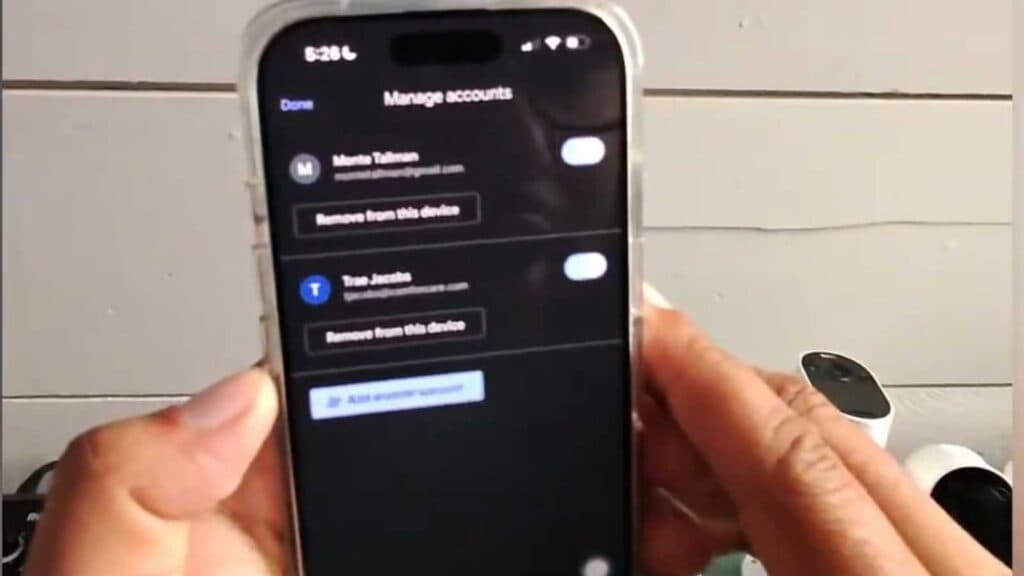
- Select “Manage accounts on this device” from the menu [0:16].
- Tap “Remove from this device” under the account you want to sign out of, which will remove that account and its data from the Gmail app and other Google services on your iPhone [0:20].
Ninja Tip: If you just want to stop receiving notifications for a specific account without removing it entirely, go to your iPhone Settings > Notifications > Gmail and toggle off the alerts for that specific account.
If you are still having trouble with your accounts, you can reset your network settings by going to Settings > General > Transfer or Reset iPhone > Reset > Reset Network Settings.
Keep Reading


