How to Add a Custom Signature to the Gmail App

By Trae Jacobs,

When you buy through our links, we may earn an affiliate commission.
Your emails sent from the Gmail mobile app lack a professional signature. You can set this up in a few quick steps.
- Open your Gmail app and tap the three-dot menu icon. [0:20]
- Scroll down and select Settings. [0:30]
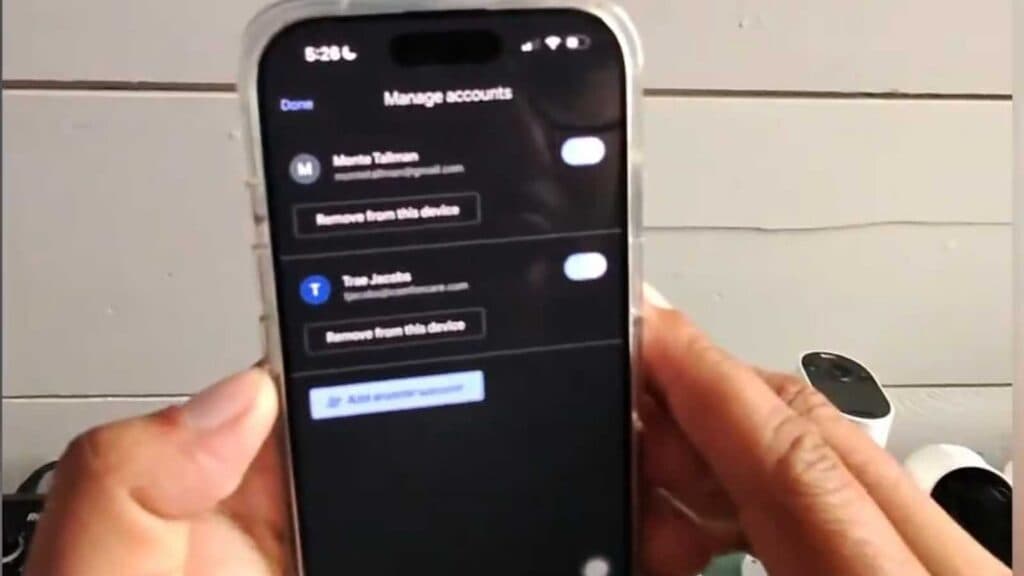
- Choose the email account you want to update. [0:34]
- Tap on Signature settings and toggle on Mobile signature. [0:38]
- Type your desired signature, such as your contact details or a note about typos, and tap Done.
Ninja Tip: You can include links to your website or social media profiles in your signature by typing them out; the app will automatically turn them into clickable hyperlinks for your recipients.
If you encounter persistent issues with your settings, clear your app cache through your phone’s main Settings > Apps > Gmail > Storage > Clear Cache.
Keep Reading


