How to Rename Your Apple TV

By Trae Jacobs,

When you buy through our links, we may earn an affiliate commission.
Your Apple TV shows up with a generic name in your device list, making it hard to tell which one is which. You can easily change this label to something more descriptive by following a few simple steps.
- Open the Settings menu on your Apple TV [0:20].
- Navigate to General and then select About [0:21].
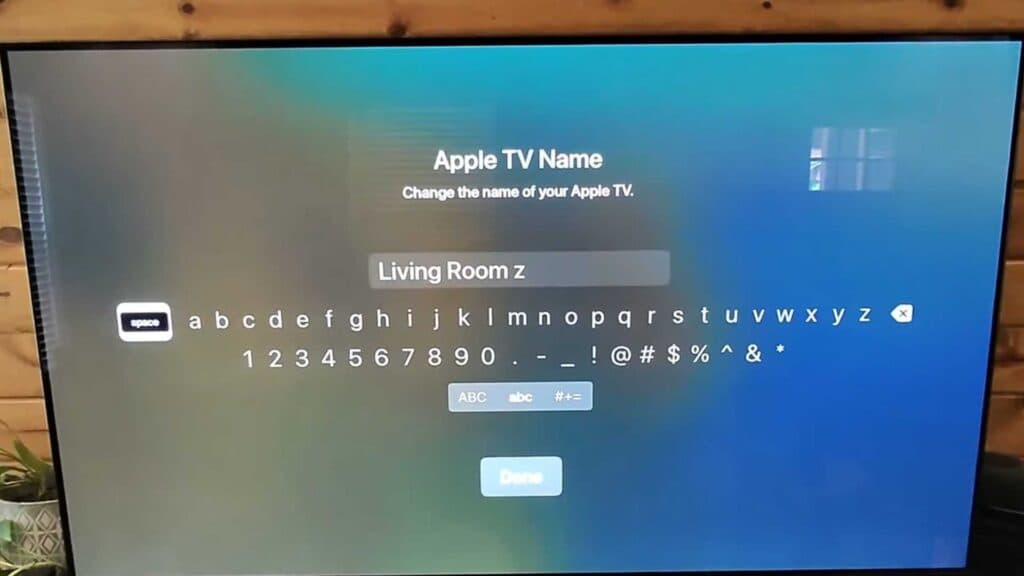
- Select the Name option to open the keyboard and enter your preferred name for the device [0:27].
- Select Done to save your changes and confirm the new name appears in your device list.
Ninja Tip: Choose a unique name that includes the room location or the TV brand, such as “Living Room LG,” to keep your AirPlay and smart home device lists organized. Avoid reusing names already assigned to other Apple devices in your household to prevent the system from automatically appending numbers to the device name.
If you encounter persistent naming conflicts or connection issues, you can perform a factory reset by navigating to Settings > System > Reset.