How to Remove a Google Account from Your Google TV

By Trae Jacobs,

When you buy through our links, we may earn an affiliate commission.
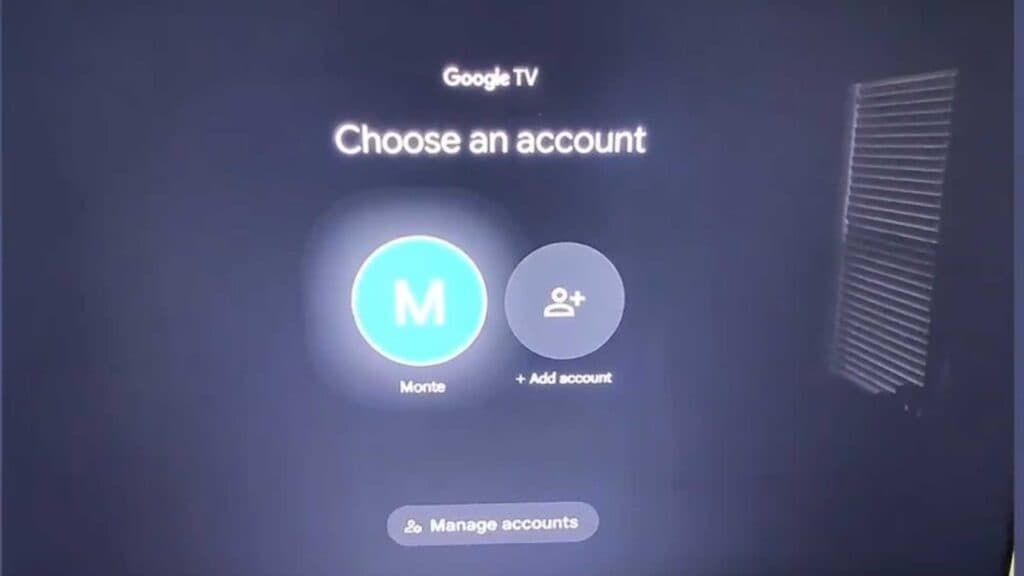
Your Google TV is signed into an account that you no longer want to use on the device. You can remove the account from your TV settings to switch to a different profile or secure your privacy.
- Open the Quick Settings menu on your TV screen [0:20].
- Navigate to your account icon and select it [0:27].
- Select “Manage accounts” from the menu [0:35].
- Choose the account you want to remove and select the option to remove it [0:46].
- Confirm the action to remove the account from the device.
Ninja Tip: Before removing your account, ensure you have your Google password written down or saved in a password manager, as you will need it if you decide to sign in with a different account later.
If you are removing the primary account, you can perform a full device refresh by navigating to Settings > System > About > Reset > Factory reset.
Keep Reading


