How to Enable Bravia Sync (HDMI-CEC) on Sony TVs

By Trae Jacobs,

When you buy through our links, we may earn an affiliate commission.
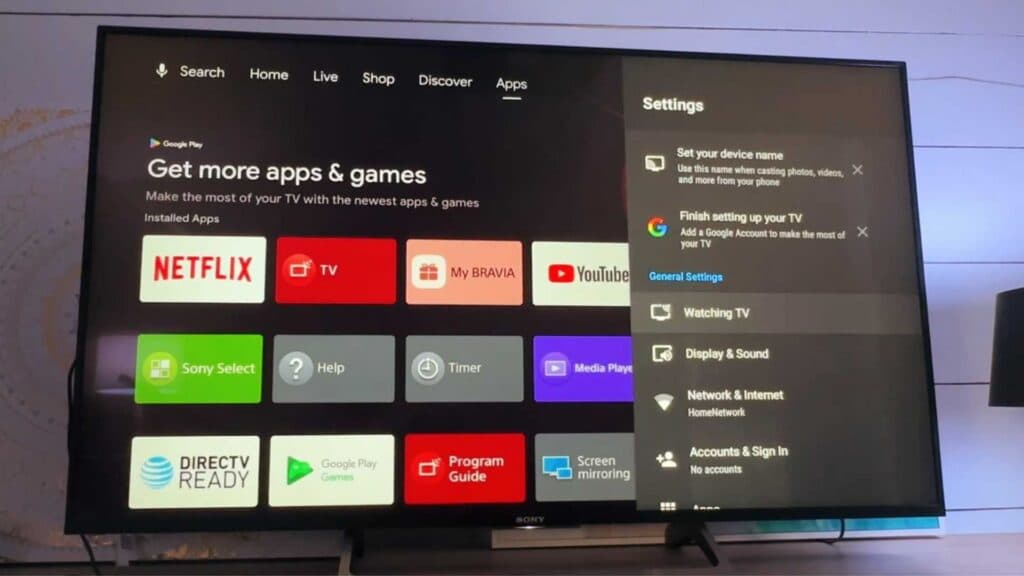
Your Sony TV remote does not control your connected soundbar or streaming device. You can fix this by enabling the Bravia Sync settings.
- Open the Settings menu on your TV [0:29].
- Select Watching TV and then navigate to External inputs [0:35].
- Select Bravia sync settings to see your available options [0:44].
- Turn on Bravia sync control, Device auto power off, and TV auto power on [0:49].
- Select Bravia sync device list to confirm that your connected hardware appears and is properly enabled.
Ninja Tip: If your devices still aren’t communicating, try unplugging the power cables for both the TV and the connected device for 60 seconds to perform a full power cycle. This often forces the HDMI handshake to refresh and resolves connectivity glitches.
If you still face issues, you can perform a factory reset by navigating to Settings > System > About > Reset.
Keep Reading


