How to Program a GE Universal Remote to Your TV

By Trae Jacobs,

When you buy through our links, we may earn an affiliate commission.
Your universal remote does not currently control your television. You can follow these simple steps to sync the device yourself.
- Find your code list on the paper that came with your remote or via the link in the video description [0:23].
- Locate the model number on the back of your remote under the battery case if the default codes do not work [1:36].
- Look up your remote model and TV brand on the manufacturer’s website to get the correct code [2:09].
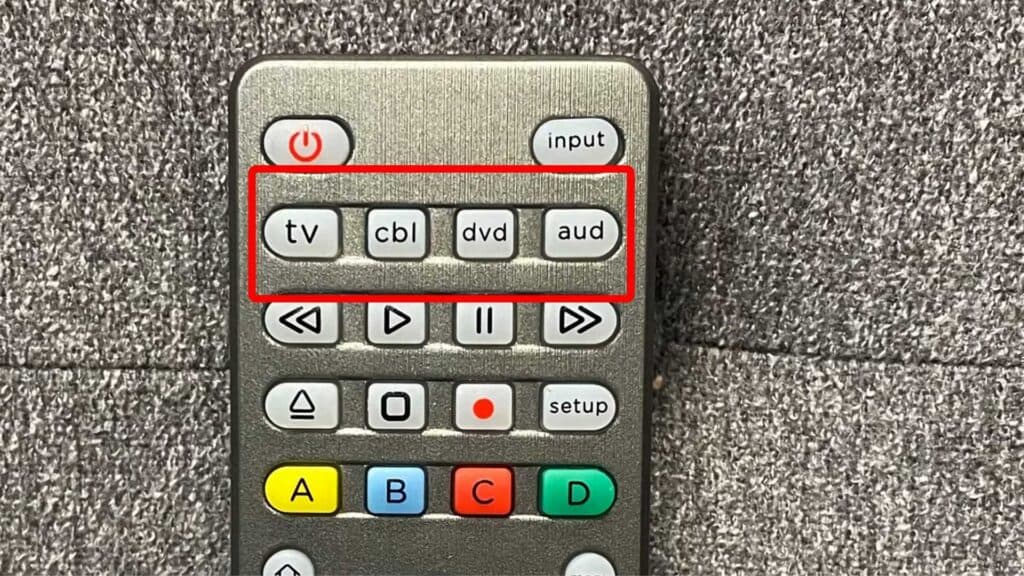
- Hold the setup button on your remote until the red light turns on [3:11].
- Press the TV button on the remote to select the device you want to program [3:22].
- Enter your specific code using the number pad on your remote [3:30].
- Test your remote by using the volume and input buttons to ensure every function works properly.
Ninja Tip: If your remote has an auto-code search feature, hold the setup button until the light flashes, then press the power button repeatedly while aiming at the TV to cycle through codes automatically.
If the remote remains unresponsive, perform a factory reset by holding setup and power together, then inputting the reset code 977, or check the menu path under Settings > Remotes & Devices > Reset Remote.
Keep Reading




