How to Disable Siri and Stop Your Apple TV from Listening

By Trae Jacobs,

When you buy through our links, we may earn an affiliate commission.
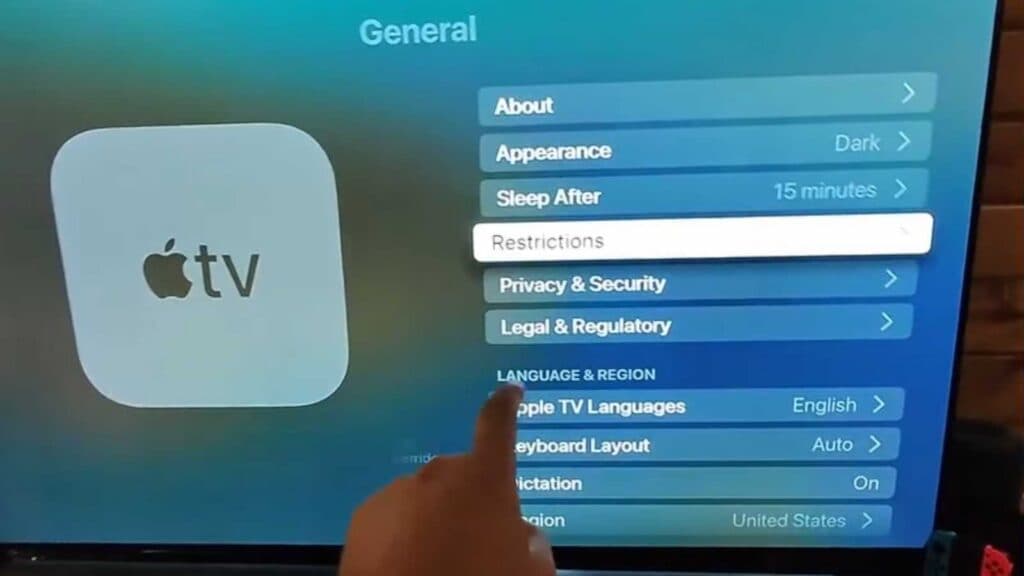
Your Apple TV is currently listening for voice commands through Siri. You can disable this feature to stop the device from responding to your voice.
- Open the Settings app on your Apple TV [0:21].
- Navigate to the General menu [0:23].
- Scroll down until you find the Siri option and select it [0:29].
- Toggle the Siri setting to off to stop the device from listening for your voice commands.
Ninja Tip: If you want to keep Siri enabled for certain tasks but want to stop it from listening in the background, check your privacy settings under Settings > General > Privacy to manage which apps have access to your microphone.
If you continue to experience issues, you can restore your device to its original state by navigating to Settings > System > Reset.
Keep Reading