How to Delete Apps on Apple TV 4K

By Trae Jacobs,

When you buy through our links, we may earn an affiliate commission.
Your Apple TV 4K is running out of storage space because of unused apps. You can clear up that room by removing these apps directly from your home screen or settings menu.
- Highlight the app you want to remove on your home screen, then press and hold the center of your remote’s clickpad until the icon begins to jiggle. Select the option to delete the app and confirm your choice [0:13].
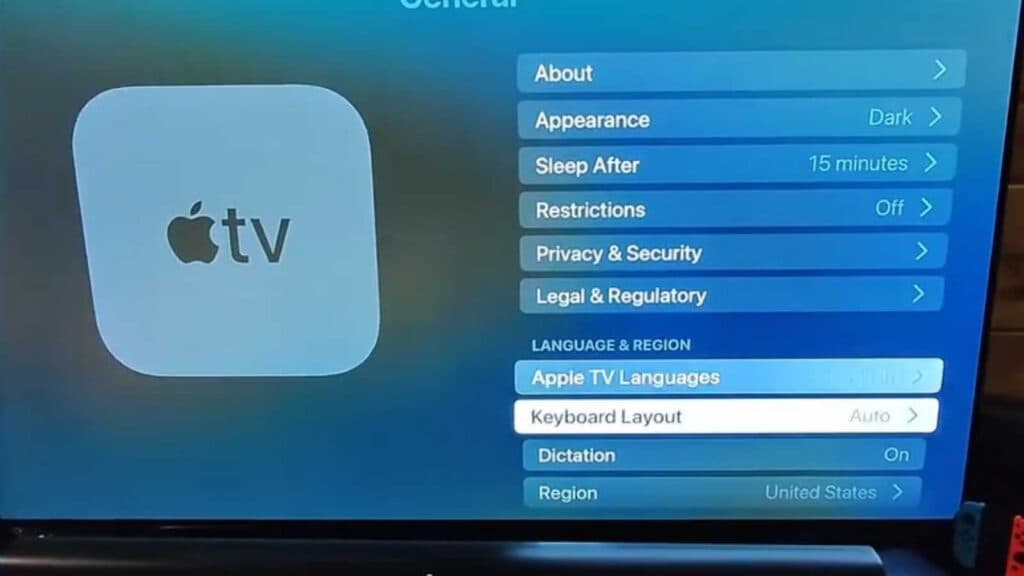
- For a faster way to remove multiple apps at once, go to Settings, then select General and navigate to Usage [0:28].
- Select Manage Storage, find the app you want to remove from the list, and select the delete icon next to it.
Ninja Tip: You can also choose to “offload” an app in the Manage Storage menu, which removes the app itself but keeps your personal data and game saves intact for when you decide to reinstall it later.
If you still need more space, you can perform a full reset by navigating to Settings > System > Reset.
Keep Reading