How to Connect Your Apple TV to an iPhone Personal Hotspot

By Trae Jacobs,

When you buy through our links, we may earn an affiliate commission.
Your Apple TV is not connecting to your iPhone personal hotspot. You can get these devices talking to each other by following a few simple steps.
- Restart your Apple TV by going to Settings > System > Restart to clear out any temporary connection bugs [0:14].
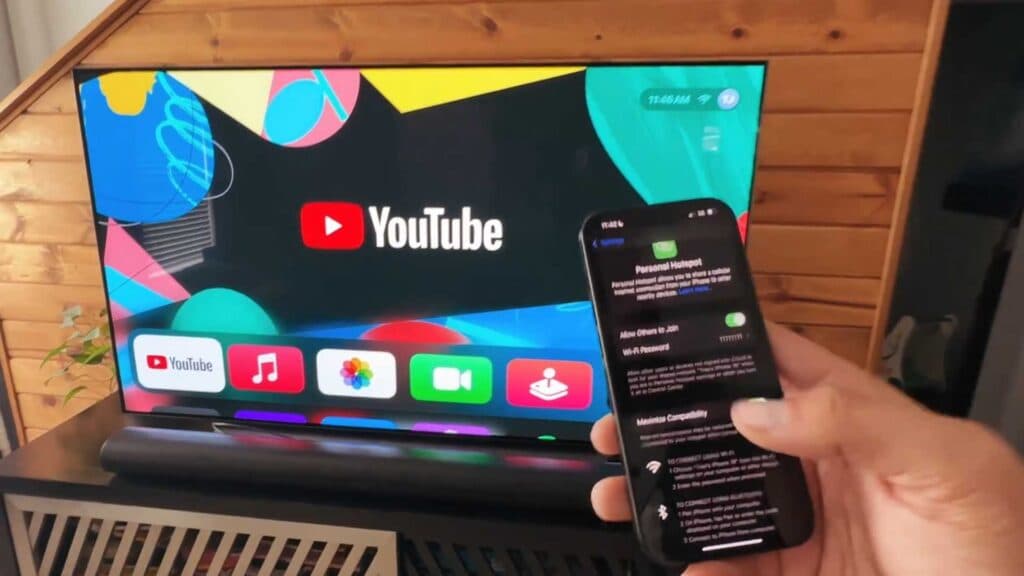
- Open the settings on your iPhone, select Personal Hotspot, and toggle on Maximize Compatibility [0:31].
- Completely close the Settings app on your phone and reopen it to ensure the changes take effect [0:39].
- Place your iPhone as close as possible to your Apple TV to ensure a strong, stable signal [0:51].
- Navigate to Settings > Network > Wi-Fi on your Apple TV, select your iPhone from the list, and enter your password to connect [0:56].
Ninja Tip: If you still can’t connect, try changing the name of your iPhone under Settings > General > About to something short and simple without special characters, which can help your Apple TV find it more easily.
If the connection still fails, perform a factory reset by going to Settings > System > Reset.
Keep Reading