How to Connect AirPods to Apple TV

By Trae Jacobs,

When you buy through our links, we may earn an affiliate commission.
Your AirPods are not playing audio from your Apple TV. You can connect them through the Apple TV settings menu to enable private listening.
- Open the Settings app on your Apple TV and navigate to the “Remotes and Devices” section [0:26].
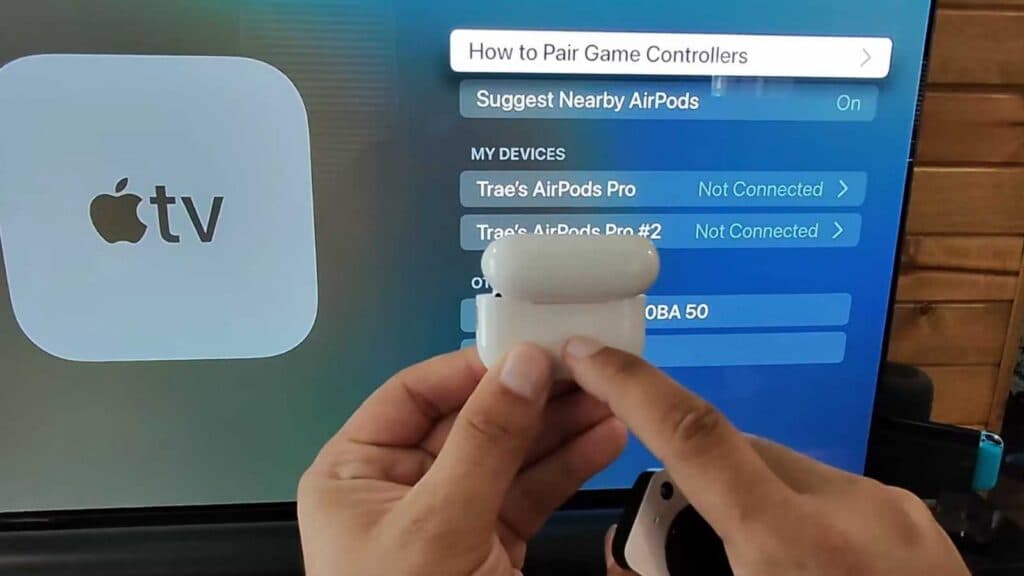
- Scroll down to “Bluetooth” located under the “Other Devices” category [0:39].
- Select your AirPods from the list if they appear there, then choose the connect option [1:01].
- If your AirPods do not appear in the list, put them back into their charging case and open the lid [1:24].
- Press and hold the button on the back of the case until the status light begins to blink [1:30].
- Select your AirPods when they appear in the “Other Devices” list on your TV screen to complete the pairing process.
Ninja Tip: If you have an Apple TV 4K or Apple TV HD, you can quickly access your audio output settings by holding down the TV/Home button on your remote to bring up the Control Center and selecting the AirPlay icon.
If you still cannot pair your devices, go to Settings > System > Reset to perform a factory reset.
Keep Reading