How to Change Your Apple ID Password, Face ID, and Passcode

By Trae Jacobs,

When you buy through our links, we may earn an affiliate commission.
Your Apple account security and device access settings require an update. You can easily manage these credentials right from your iPhone settings.
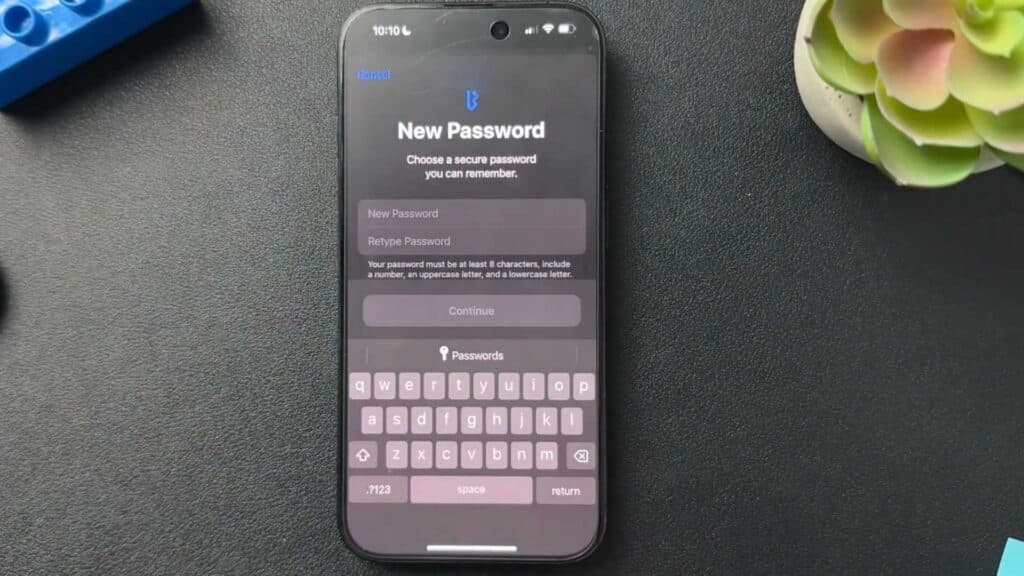
- Change your Apple ID password by opening your Settings, tapping your name at the top, selecting Sign In & Security, and choosing Change Password [0:17].
- Reset your Face ID by going to Settings, selecting Face ID & Passcode, and turning off Stolen Device Protection before tapping Reset Face ID [0:55].
- Update your device passcode by navigating to Settings, selecting Face ID & Passcode, and tapping Change Passcode to enter a new numeric code [2:05].
Ninja Tip: Always keep your Recovery Key stored in a secure, physical location outside of your device, as this is the only way to regain access if you lose both your password and a trusted device.
If you need to perform a full factory reset, you can find the option under Settings > General > Transfer or Reset iPhone > Erase All Content and Settings.
Keep Reading