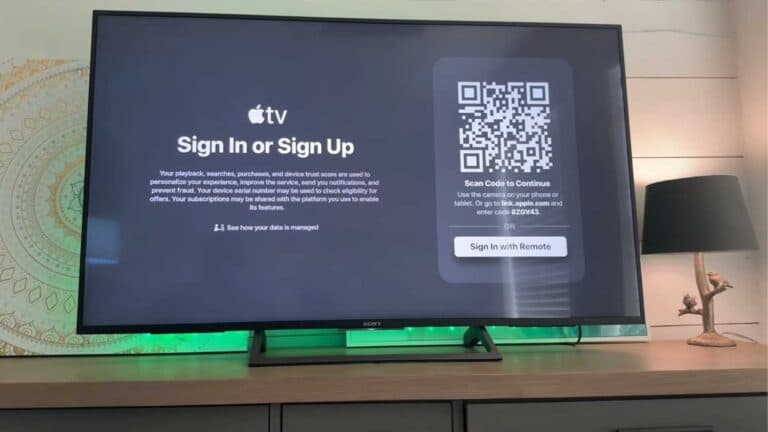
How to Cancel Your Apple TV+ Subscription

By Trae Jacobs,

When you buy through our links, we may earn an affiliate commission.
Your Apple TV+ subscription is currently active and billing your account. You can stop this service by following a few simple steps.
- Open the Apple TV+ app or visit tv.apple.com on your preferred device. [0:07]
- Select your initials or profile icon in the upper right-hand corner of the screen. [0:18]
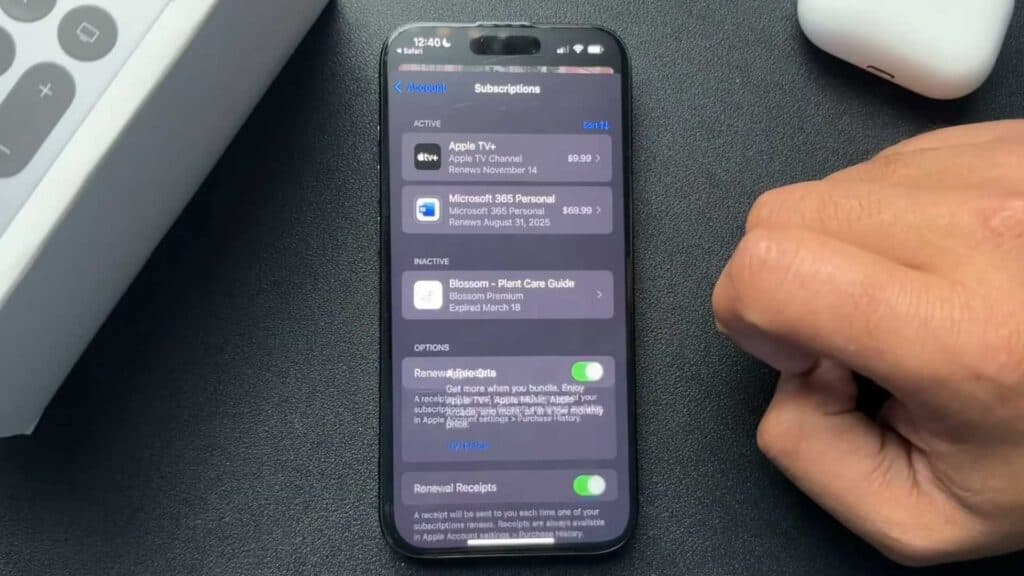
- Choose Manage Subscriptions from the menu options that appear. [0:23]
- Select your Apple TV+ account from the list of active subscriptions. [0:32]
- Scroll down to find and select the Cancel Subscription button and confirm your choice to finish.
Ninja Tip: If you want to verify that the cancellation went through, return to the Subscriptions menu and look for the Expiration Date listed under the Apple TV+ entry instead of a renewal price. This confirms your access will end on that specific date without further charges.
For a complete reset of your account data or to remove all associated profiles, navigate to Settings > General > Transfer or Reset iPhone > Erase All Content and Settings.
Keep Reading