How to Cancel Subscriptions on Apple TV 4K

By Trae Jacobs,

When you buy through our links, we may earn an affiliate commission.
You are currently paying for subscriptions on your Apple TV 4K that you no longer use. You can cancel these services directly through your device settings to stop future charges.
- Open the Settings menu on your Apple TV home screen [0:18].
- Select Users and Accounts and then choose your specific user profile [0:21].
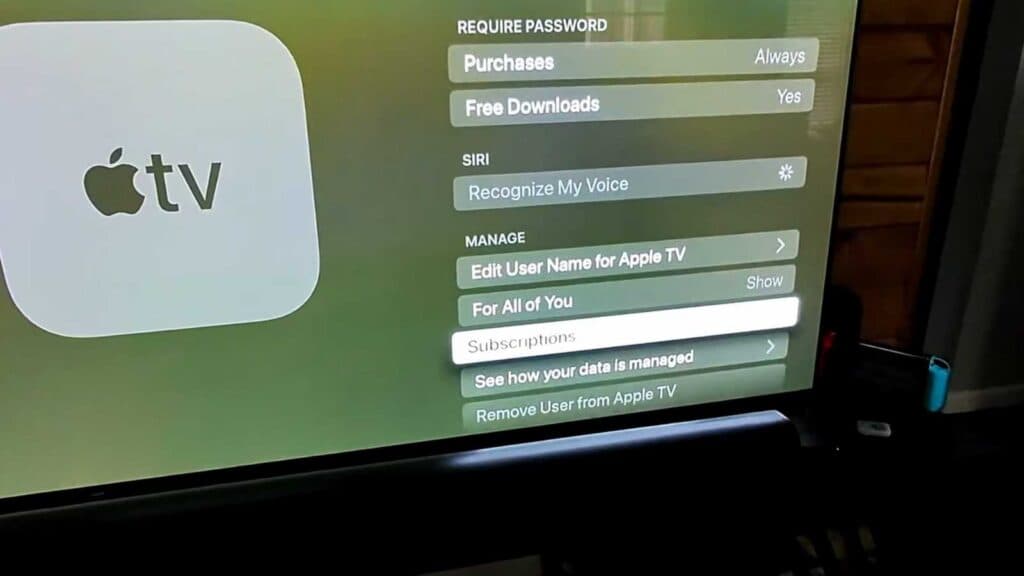
- Scroll down the menu and select Subscriptions [0:31].
- Follow the on-screen prompts to verify your identity using your nearby iPhone or Apple device [0:49].
- Select the subscription you wish to stop, scroll to the bottom of the page, and click Cancel Subscription to end it.
Ninja Tip: You can also manage and cancel your Apple TV subscriptions by opening the Settings app on your iPhone or iPad, tapping your name at the top, and selecting Subscriptions to view your active services.
If you continue to have trouble with your account, you can perform a factory reset by navigating to Settings > System > Reset.
Keep Reading