How to Add Speaker Notes to Google Slides

By Trae Jacobs,

When you buy through our links, we may earn an affiliate commission.
You need to add speaker notes to your Google Slides presentation to stay on track during your talk. You can easily enable and manage these notes using the built-in settings.
- Open your presentation and click the “View” tab at the top of the screen [0:08].
- Select “Show speaker notes” from the dropdown menu to enable the feature [0:11].
- Click and drag the horizontal bar above the notes section to resize it so you have enough space to read and edit your text [0:28].
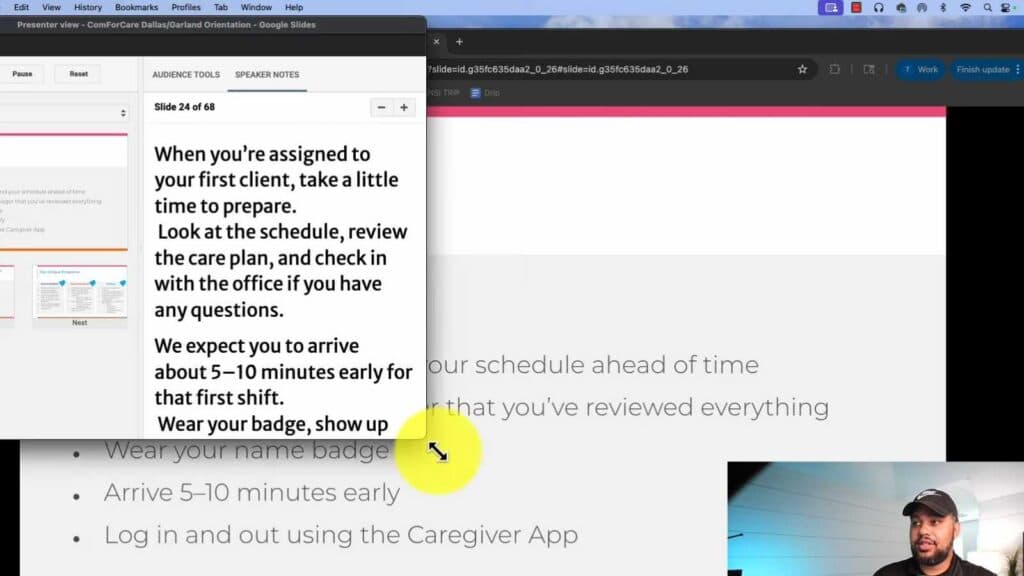
- When you are ready to present, click the arrow next to the “Slideshow” button and choose “Presenter view” to display your notes on a separate screen from your main presentation [0:45].
Ninja Tip: You can quickly show or hide your speaker notes at any time by pressing Ctrl+Alt+Shift+S on Windows or Cmd+Option+Shift+S on a Mac.
If the speaker notes window fails to appear, reset your browser settings via Settings > Reset settings > Restore settings to their original defaults.
Keep Reading


