Title: How to Start a Group Message on iPhone

By Trae Jacobs,

When you buy through our links, we may earn an affiliate commission.
Intro: You currently need a way to send one message to multiple contacts at once. You can set up a group chat on your iPhone in just a few steps.
Steps:
- Open your iMessage app on your iPhone [0:08].
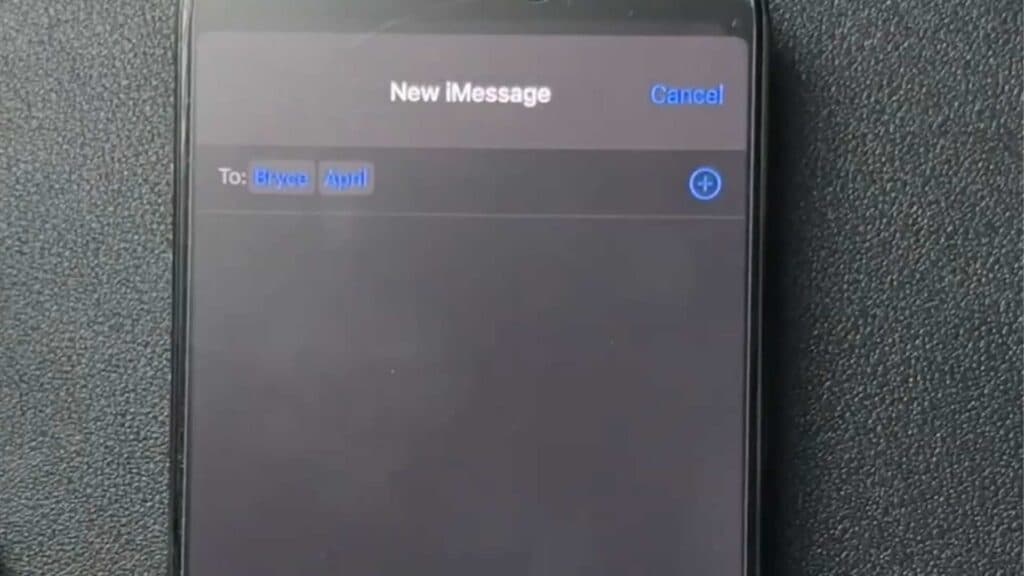
- Tap the compose icon located at the top of your screen to start a new message [0:11].
- Type the names of the people you want to include in the group or tap the plus icon to search through your contacts [0:22].
- Add as many people as you need to the thread.
- Type your message and send it to the entire group.
Ninja Tip: You can quickly name your group text by tapping the group icons at the top of the chat, selecting Change Name and Photo, and typing in a title. This makes finding specific conversations much faster when your inbox gets crowded.
Closing: If your iMessage features are not working properly, navigate to Settings > General > Transfer or Reset iPhone > Reset > Reset Network Settings.
Keep Reading



