How to View Your Purchase History on iPhone

By Trae Jacobs,

When you buy through our links, we may earn an affiliate commission.
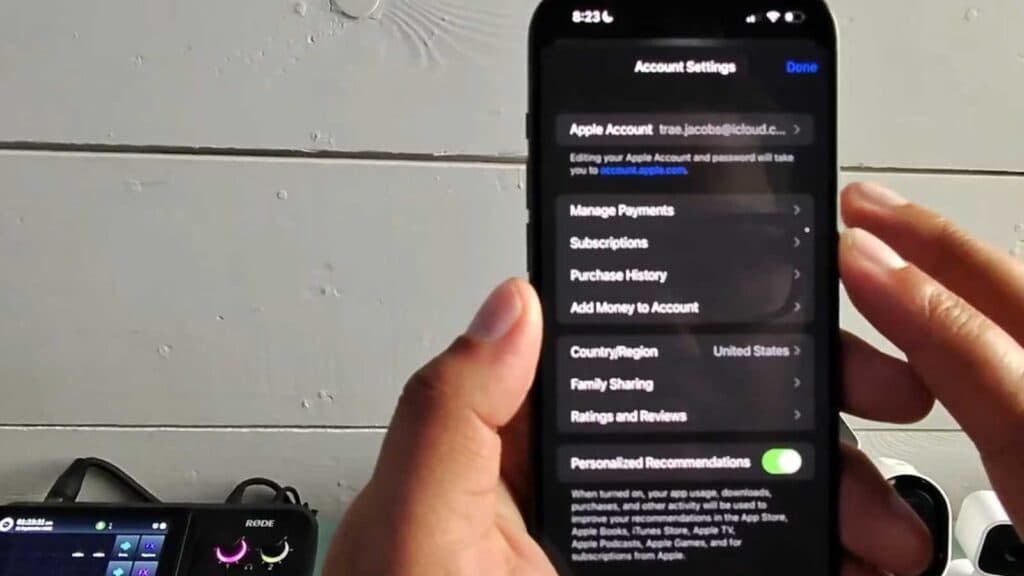
You need to see a list of the apps, subscriptions, and items you have purchased with your Apple ID. You can view your complete transaction history directly through your iPhone settings.
- Open the Settings app and tap your name at the very top of the screen [0:08].
- Select Media & Purchases and then tap View Account [0:15].
- Scroll down and tap on Purchase History [0:21].
- Use the filter options at the top to sort by date range or toggle between paid and free transactions to find exactly what you are looking for.
Ninja Tip: If you see a charge you don’t recognize, you can tap on the specific transaction and select “Report a Problem” to request a refund or dispute the charge directly through Apple.
If your purchase history is empty but you know you made a purchase, ensure you are signed into the correct Apple ID by checking Settings > [Your Name].
Keep Reading



