How to View and Restore Version History in Google Docs

By Trae Jacobs,

When you buy through our links, we may earn an affiliate commission.
You need to recover a previous version of your Google Doc to undo recent changes. You can restore your document to an earlier state using the built-in version history tool.
- Open your document, click on File in the top menu, and select Version history to see your options. [0:16]
- Select Name current version if you want to label your current progress for easier identification later. [0:24]
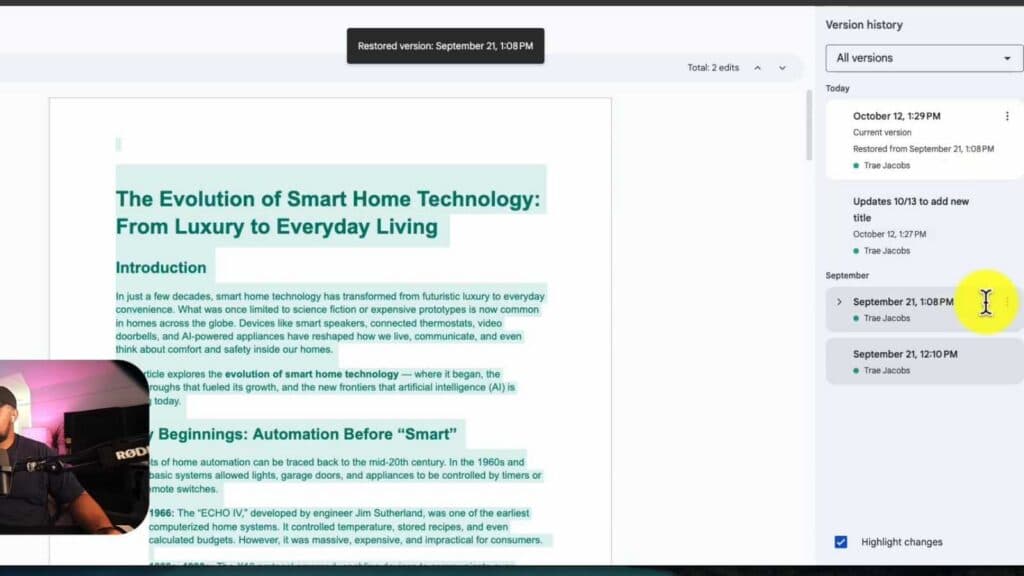
- Choose See version history to view a chronological list of changes made to the file. [0:42]
- Click through the previous iterations in the right-hand panel to review how the document appeared at different times. [0:54]
- Uncheck the Show changes box if you want to view the document without the edits highlighted. [1:08]
- Click the Restore this version button at the top of the screen to revert your file to that specific point in time.
Ninja Tip: You can also click the three-dot menu next to any specific version in the history list to make a copy of that version in a new document, which is perfect if you only want to extract a small section of deleted text without reverting your entire current file.
If you accidentally delete the file entirely, you can recover it by visiting your Google Drive Trash folder at drive.google.com/drive/trash.
Keep Reading



