How to Use Your Apple Card to Pay at Amazon

By Trae Jacobs,

When you buy through our links, we may earn an affiliate commission.
Amazon doesn’t accept Apple Pay at checkout. You can fix this by using your virtual Apple Card number instead.
- Open the Wallet app on your iPhone and tap your Apple Card, then select the three dots in the top right corner to retrieve your virtual card number [0:29].
- Note down your card number, CVV, and expiration date so you have them ready for the checkout page.
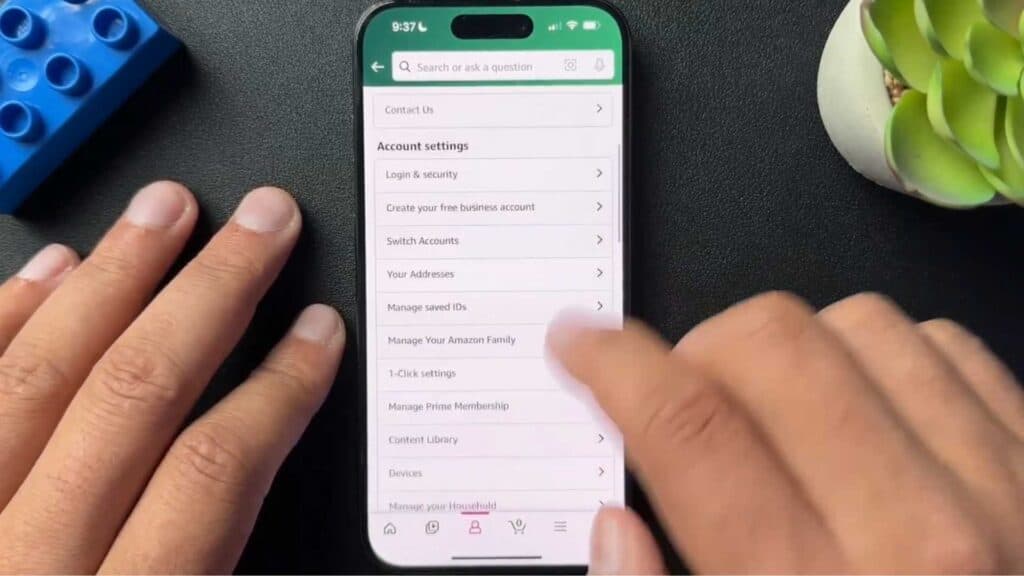
- Open your Amazon app, tap the menu icon, go to your Account settings, and select Your Payments.
- Tap the Add button under the cards section and choose to add a credit or debit card, then enter the virtual card details you retrieved from your Wallet to finish saving the payment method.
Ninja Tip: If you frequently shop at Amazon and want to earn extra rewards, consider using the Amazon Prime Visa card instead, which offers 5% back on all purchases for Prime members without needing to manually copy card details.
If you still experience errors during checkout, check your payment settings by navigating to Account > Your Payments > Manage Payment Methods.
Keep Reading



