How to Use the Roku App as a Remote

By Trae Jacobs,

When you buy through our links, we may earn an affiliate commission.
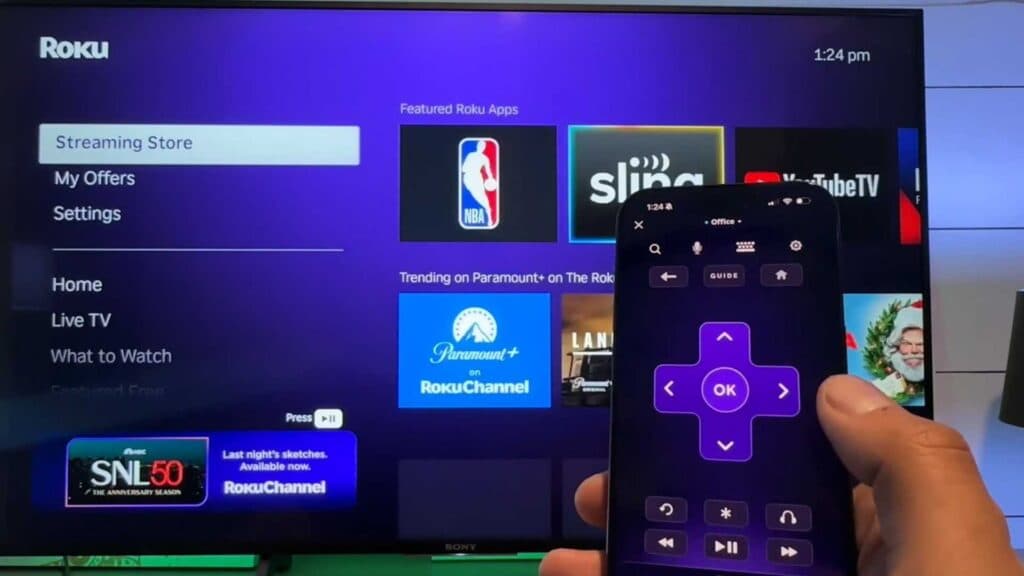
Your physical Roku remote is lost or broken. You can turn your smartphone into a fully functional remote control using the official Roku app.
- Download the Roku app on your phone and sign in to your Roku account [0:11].
- Make sure your phone is connected to the same Wi-Fi network as your Roku device [0:18].
- Tap the “Devices” tab in the app and select your Roku device once it appears on the screen [0:24].
- Select the “Remote” option to start controlling your TV.
Ninja Tip: If you have trouble finding your device, ensure your TV’s “Network access” or “Mobile app” settings are enabled under the System settings menu on your Roku TV.
If you are still unable to connect, you can perform a factory reset by navigating to Settings > System > Advanced system settings > Factory reset.
Keep Reading



