How to Use the Clean Up Tool to Remove Objects from iPhone Photos

By Trae Jacobs,

When you buy through our links, we may earn an affiliate commission.
There are unwanted people or objects in your photos that distract from your shot. You can easily remove these elements using the built-in Clean Up tool on your iPhone.
- Update your iPhone to the latest iOS and ensure you have an iPhone 15 or 16 with Apple Intelligence enabled [0:25].
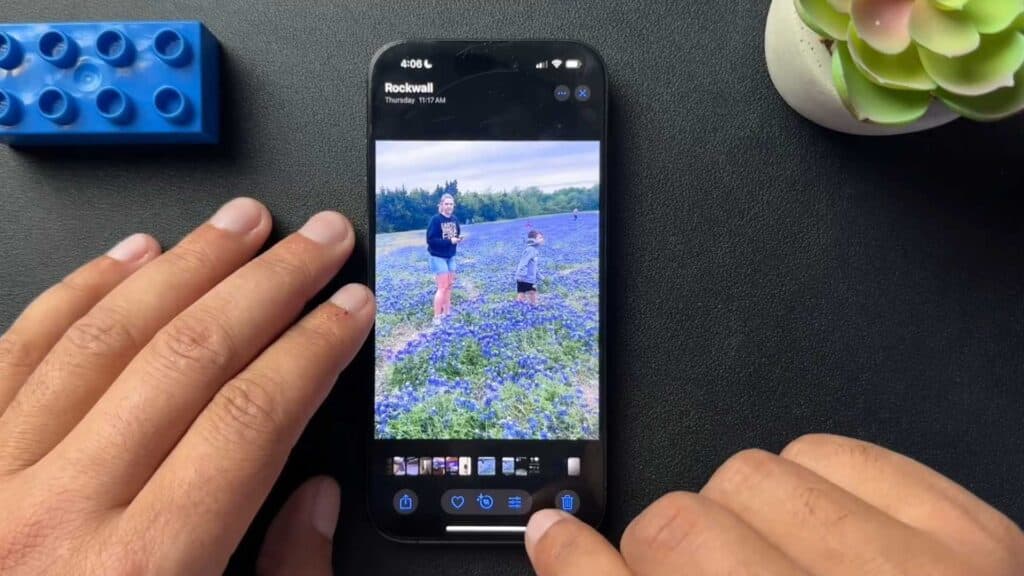
- Open the photo you want to edit in the Photos app [0:53].
- Tap the edit or filter icon and select the Clean Up option [0:56].
- Circle the people or objects you want to remove, and the tool will erase them from the background [1:04].
- If the tool makes a mistake, use the undo arrows at the top of the screen to fix it [1:29].
- Once you are satisfied with your edits, save the image by tapping Done [1:54].
- If you decide you want the original image back, open the photo again, tap the same settings icon, and select Revert to Original.
Ninja Tip: If you want to refine your selection, you can zoom in on the photo before circling the object to ensure you don’t accidentally remove parts of your subject, like hair or clothing edges.
For a complete reset of all photo edits, go to Settings > Photos > Reset Adjustments.
Keep Reading



