How to Use Roku App as a Remote (Easy Setup)

By Trae Jacobs,

When you buy through our links, we may earn an affiliate commission.
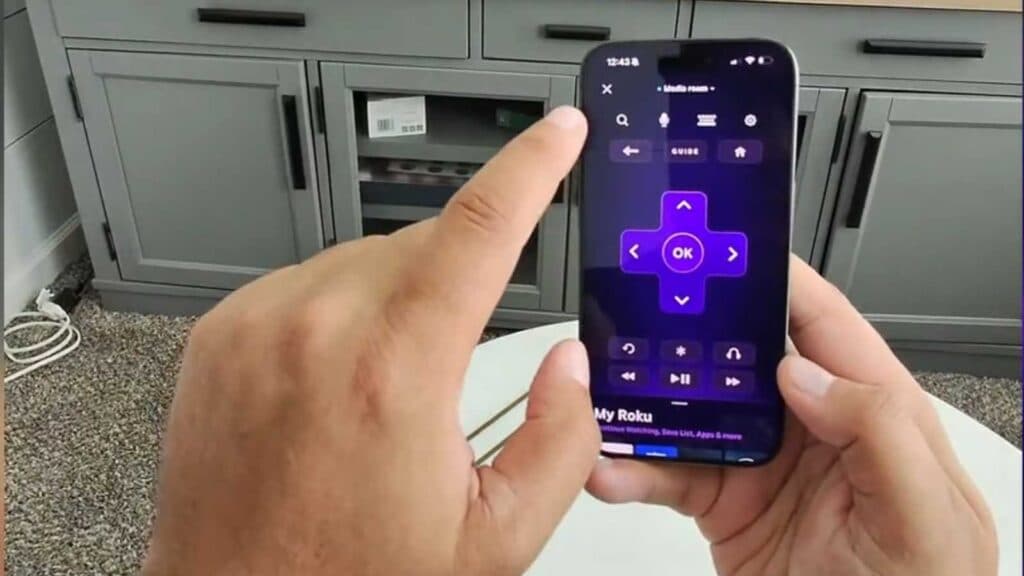
Your Roku remote is missing, and you need to control your television. You can use your smartphone to regain full control of your device.
- Download and install the free Roku app on your iPhone or Android device.
- Open the app and tap the “Remote” icon to begin the setup process [0:41].
- Select your Roku device from the list, ensuring both your phone and your Roku are connected to the same Wi-Fi network [0:46].
- Use the app’s home button to turn on your TV, as the app can power your device on or off [1:02].
- Use the search feature to find content and choose “Play” to start streaming it directly on your TV [1:26].
- Tap the headphone icon in the app to route the TV audio through your phone or connected wireless headphones.
Ninja Tip: If you can’t connect because the Roku isn’t on your Wi-Fi, use your phone to create a mobile hotspot with the exact same network name and password that your Roku previously used to force a connection.
If these steps do not resolve your issue, you can perform a factory reset by navigating to Settings > System > Advanced system settings > Factory reset.
Keep Reading



