How to Use Google Lens as a Visual Search Button on Your iPhone

By Trae Jacobs,

When you buy through our links, we may earn an affiliate commission.
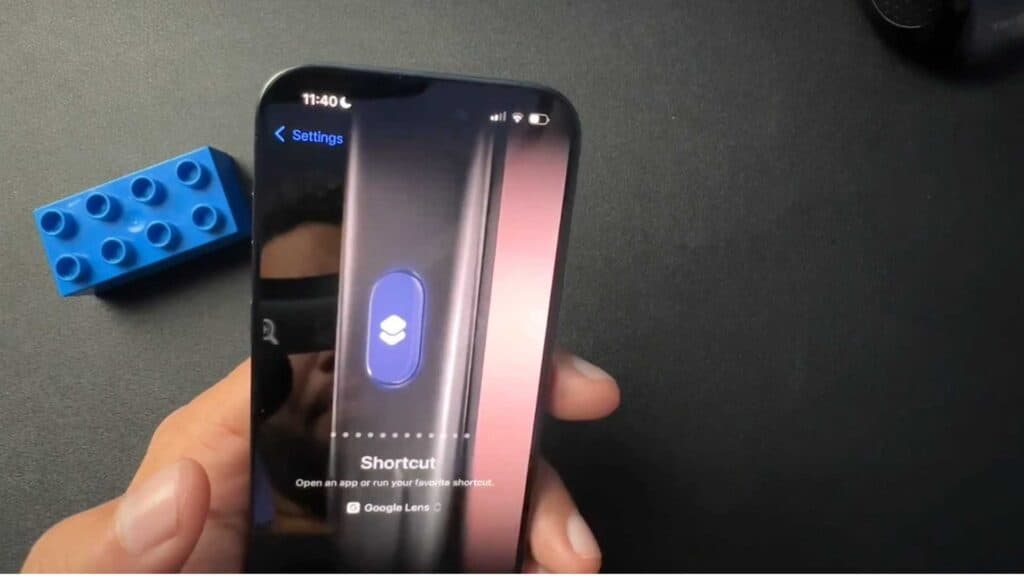
Your iPhone 15 Pro lacks the built-in visual intelligence feature found on newer models. You can get identical functionality by mapping the action button to trigger Google Lens instead.
- Ensure you have the Google app installed on your iPhone from the App Store.
- Open your iPhone Settings and navigate to the “Action Button” menu [1:12].
- Swipe through the options until you find “Shortcut” and tap “Choose a Shortcut” [1:25].
- Scroll down to select Google and then choose the specific Google Lens option [1:34].
- Press and hold your action button to instantly launch the Google Lens camera and perform a visual search.
Ninja Tip: You can also set up a “Back Tap” accessibility shortcut in Settings > Accessibility > Touch > Back Tap to trigger Google Lens by tapping the back of your phone, giving you a secondary way to launch the search tool without using the action button.
If you are unable to trigger shortcuts with your action button, check that your device software is up to date in Settings > General > Software Update.
Keep Reading



