How to Use Google Docs Voice Typing for Faster Job Applications

By Trae Jacobs,

When you buy through our links, we may earn an affiliate commission.
Writing custom cover letters takes a lot of time and effort. You can streamline this process by using Google Docs voice typing to dictate your thoughts directly into a document.
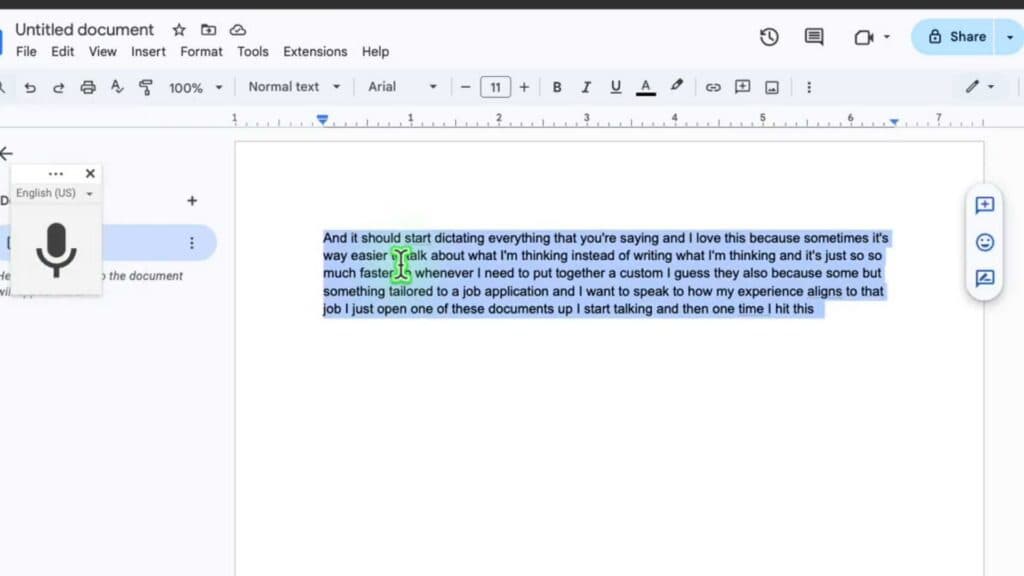
- Open a Google Document and select the Tools menu to find the Voice typing feature [0:27].
- Click the microphone icon to start recording and speak naturally about your experience and how it aligns with the job you are pursuing [0:37].
- Stop the recording once you have finished by clicking the icon again [1:15].
- Copy your raw stream of thought text and paste it into ChatGPT with a prompt to summarize or rewrite it in your voice [1:28].
- Copy the polished output from ChatGPT and paste it into a fresh, blank Google Doc first [2:40].
- Copy the text from that second document to paste into your final job application, which helps bypass automated AI detection tools.
Ninja Tip: To improve your dictation accuracy, use a dedicated external microphone rather than your laptop’s built-in mic to ensure your speech is transcribed clearly.
If the feature fails to activate, check your browser permissions by navigating to Settings > Privacy and security > Site settings > Microphone.
Keep Reading



