How to Use Google and Apple Translate with AirPods

By Trae Jacobs,

When you buy through our links, we may earn an affiliate commission.
You want to hear translated audio directly through your AirPods to understand a foreign language. You can easily set this up using either Google Translate or the built-in Apple Translate app.
- Using Google Translate: Open the app and set your source language on the left and your target language on the right [0:41]. Tap the record button to start capturing audio [0:49], then play your source material. Once the translation appears on your screen, you can read it or tap the play button to hear the audio through your connected AirPods [1:09].
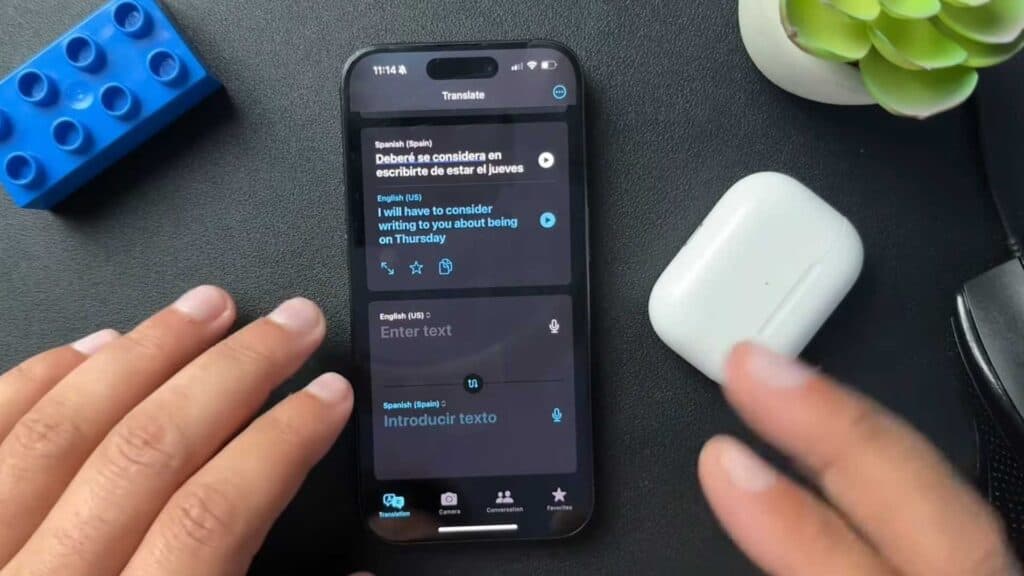
- Using Apple Translate: Launch the app on your iPhone and tap the record button to begin capturing audio [1:26]. When you are finished, tap the stop button [1:29]. You can then play the translated message, which will route directly to your AirPods if you have them in your ears [1:34].
Ninja Tip: If you are using an iPhone with Apple Intelligence, you can access system-wide Live Translation in many apps by simply pressing and holding the stem on both AirPods simultaneously to start real-time, in-ear interpretation of your conversations.
If your translations are not playing through your headphones, verify your audio output in the Control Center by ensuring your AirPods are selected as the active playback device.
Keep Reading


