How to Use Burst Mode on iPhone

By Trae Jacobs,

When you buy through our links, we may earn an affiliate commission.
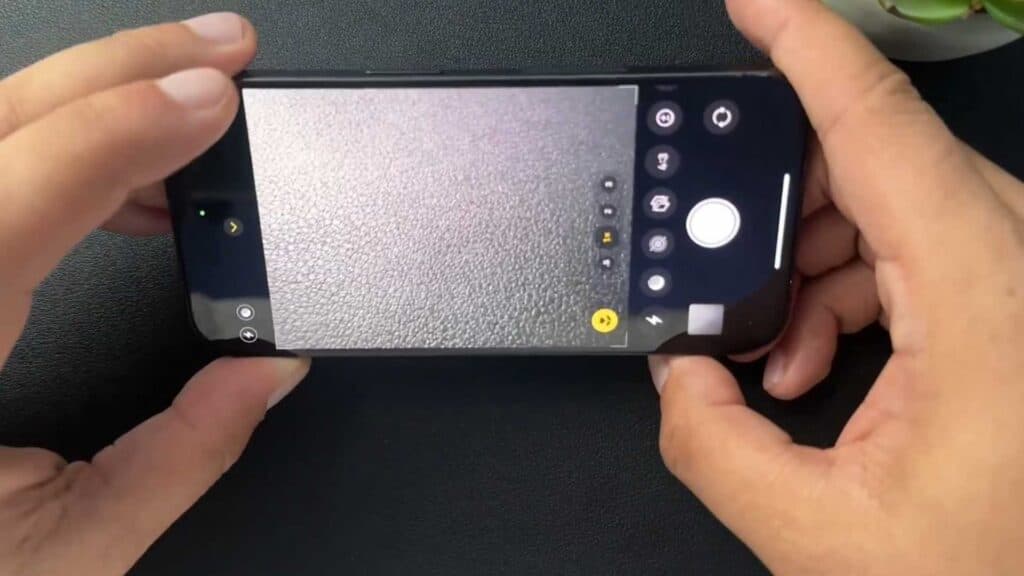
Your iPhone camera captures only one photo at a time when you press the shutter button. You can easily switch to Burst Mode to capture 10 photos every second for better action shots.
- Open your camera app and slide the shutter button to the left to start a burst sequence [0:49].
- Open the Photos app and tap the thumbnail showing the burst stack to view all captured images [1:27].
- Select the specific photos you want to keep and tap “Done” to either save your favorites individually or keep the entire burst set [1:43].
- Go to Settings > Camera, then turn on “Use Volume Up for Burst” to enable the feature using your physical volume button.
Ninja Tip: If your phone is running low on storage, burst photos can add up quickly; be sure to go back into your Photos app after a shoot to delete the unwanted frames and free up space.
For a clean start, you can reset your camera settings by going to Settings > General > Transfer or Reset iPhone > Reset > Reset All Settings.
Keep Reading



