How to Use Apple AirPlay on Your Roku Device

By Trae Jacobs,

When you buy through our links, we may earn an affiliate commission.
Your Roku device is not currently connected to your iPhone via AirPlay. You can fix this by adjusting your settings.
- Go to your Roku home screen, open the Settings menu, and select Apple AirPlay and HomeKit. [0:09]
- Toggle the AirPlay setting to On so that your device is ready to stream. [0:35]
- Choose your preferred security level, such as requiring a code for the first time you connect. [0:45]
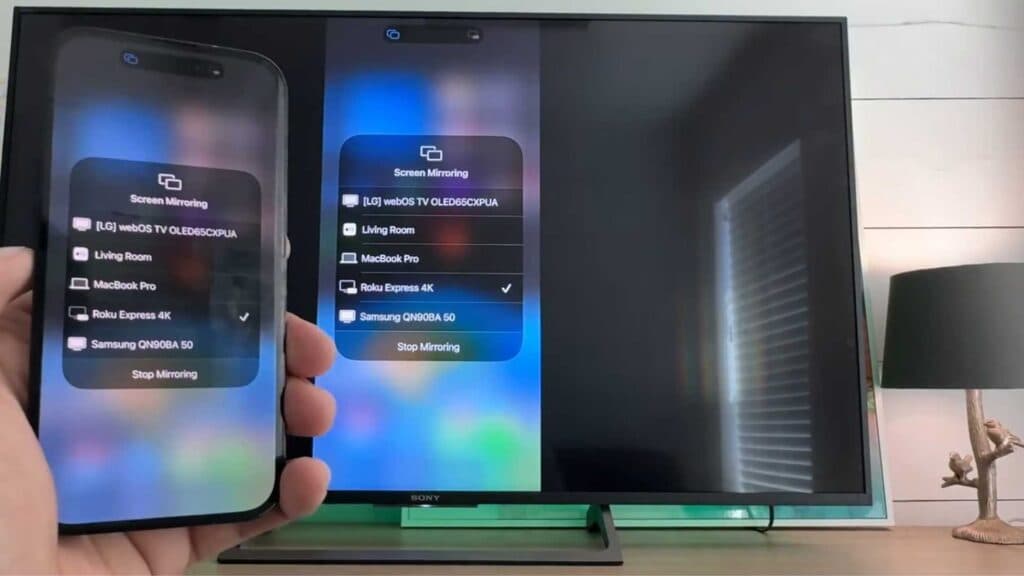
- Open your iPhone’s Control Center by swiping down from the top right corner and tap Screen Mirroring. [1:12]
- Select your Roku device from the list that appears on your iPhone screen to start mirroring.
Ninja Tip: If your devices do not recognize each other, ensure both your Roku and your iPhone are connected to the exact same Wi-Fi network.
If these steps do not work, you can perform a factory reset by navigating to Settings > System > Advanced system settings > Factory reset.
Keep Reading



