How to Update Your Home and Work Address in Apple Maps

By Trae Jacobs,

When you buy through our links, we may earn an affiliate commission.
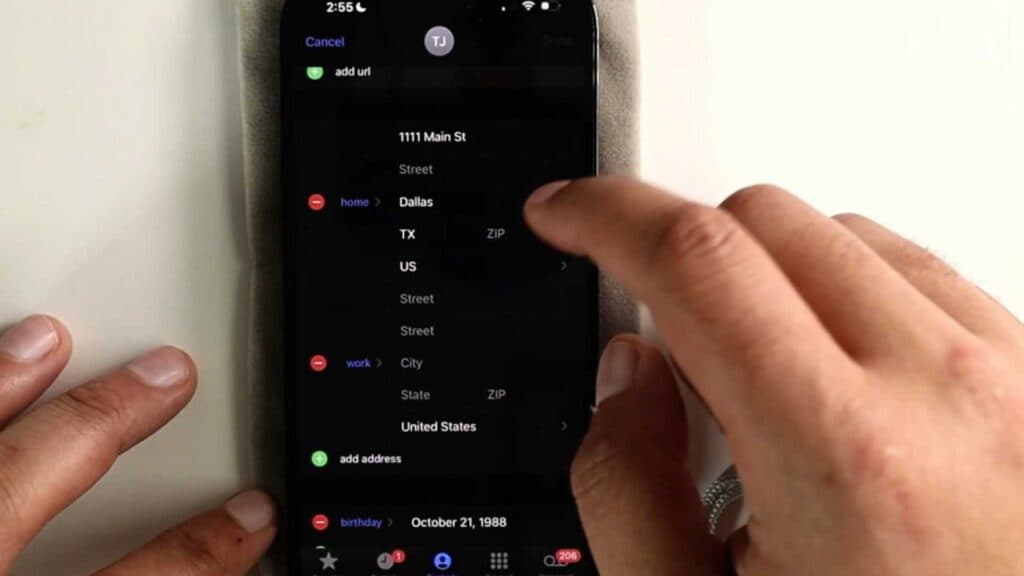
Your Apple Maps app gives you incorrect directions to your home or work because it is still saved to your old address. You can quickly update these locations by editing your contact card.
- Open the Apple Maps app and start directions to your home, then close the directions panel [0:34].
- Tap the edit icon on the pop-up menu to be redirected to your contact card [0:46].
- Update your home address or select add address to input your work location [0:55].
- Alternatively, you can open the Contacts app, select your My Card at the top, click Edit, and manually change your home or work details.
Ninja Tip: Ensure you enable Significant Locations in Settings > Privacy & Security > Location Services > System Services so your iPhone can intelligently suggest your frequent destinations.
If you still experience issues, perform a reset of your location warnings by going to Settings > General > Transfer or Reset iPhone > Reset > Reset Location & Privacy.
Keep Reading



