How to Update Your Apps on an LG Smart TV

By Trae Jacobs,

When you buy through our links, we may earn an affiliate commission.
Your apps are failing to launch or behaving unexpectedly because they are running on outdated software. You can resolve these performance issues by manually updating the applications directly through your TV’s interface.
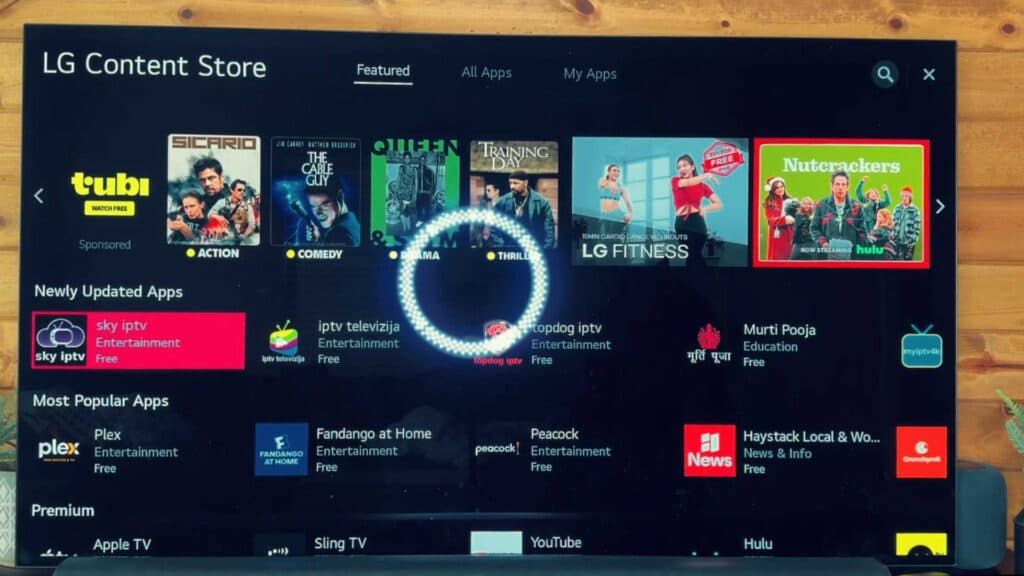
- Open the LG Content Store from your home screen [0:33].
- Navigate to the “My Apps” section at the top of the menu screen [0:48].
- Select “App Update” to view a list of all your installed applications that have pending updates [1:01].
- Select the apps you want to update individually or choose “Update All” to refresh your entire library at once [1:21].
Ninja Tip: If an app continues to crash after an update, try a “soft reset” by holding the power button on your remote for 10 seconds until the TV turns off and restarts, which clears temporary system memory.
If the issue persists, a full factory reset can be performed through Settings > General > System > Reset to Initial Settings.
Keep Reading


