How to Update or Change Your PayPal Phone Number

By Trae Jacobs,

When you buy through our links, we may earn an affiliate commission.
Your PayPal account is linked to an outdated phone number that you no longer use. You can easily update this information through your account settings.
- Log into your PayPal account, click the Account button in the upper right corner, and select Account Info [0:07].
- Locate your phone numbers and click See All to view your saved contacts [0:13].
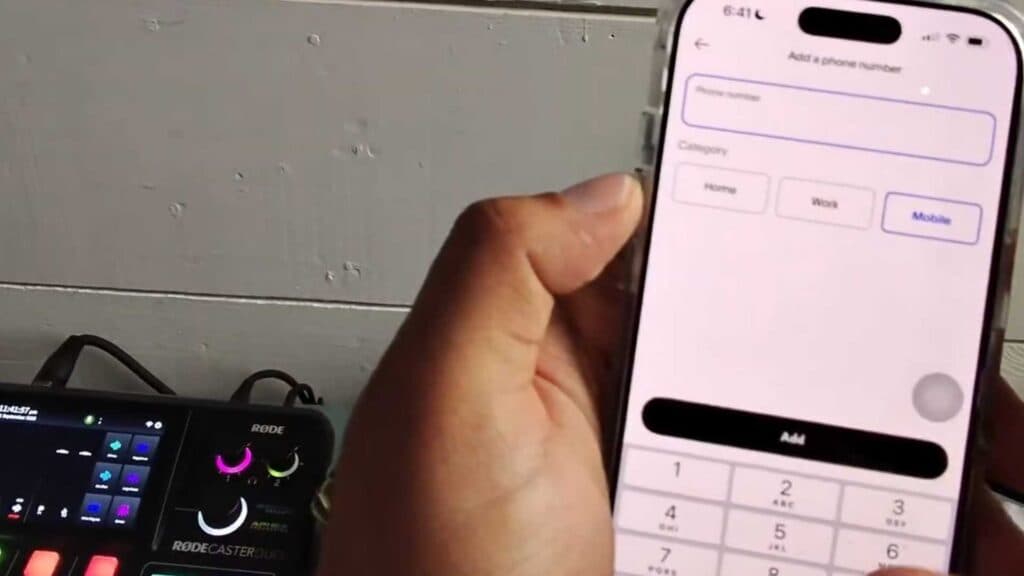
- Click to add your new phone number and select which category it belongs to [0:31].
- Follow the prompt to verify the new number via text message, which will automatically set it as your primary number [0:35].
- Select the old phone number and click remove to delete it from your account.
Ninja Tip: If you use your phone number for two-factor authentication, remember to update your login security settings after adding the new number to ensure you don’t get locked out of your account.
If you need to completely reset your account details or are experiencing errors, navigate to Settings > Security to review your account access options.
Keep Reading



