How to Turn On LED Flash Alerts for Calls and Texts on iPhone

By Trae Jacobs,

When you buy through our links, we may earn an affiliate commission.
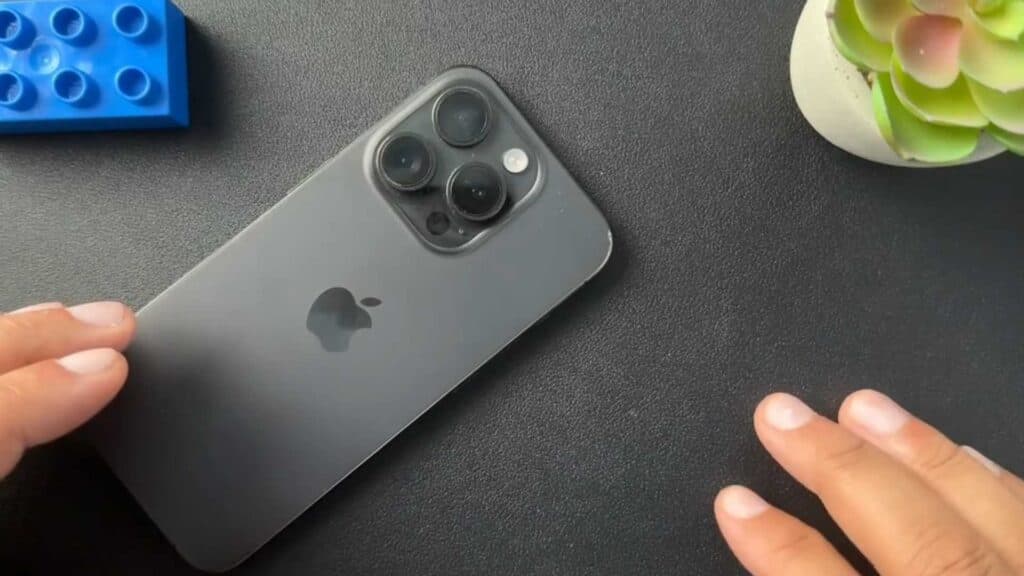
Your iPhone does not light up when you receive an incoming call or text message. You can enable the LED flash feature in your device settings to get visual notifications.
- Open your Settings app and scroll down to select Accessibility [0:36].
- Tap on Audio & Visual to open the notification options [0:42].
- Toggle the switch for LED Flash for Alerts to the on position [0:48].
- Customize your settings by choosing whether you want the flash to activate while your phone is locked or while it is set to silent mode.
Ninja Tip: If you want a more subtle visual notification without the bright camera flash, go to Settings > Accessibility > Accessibility Shortcut and add “Color Filters” to quickly trigger a screen tint overlay instead.
If these steps do not resolve the issue, you can perform a full reset by going to Settings > General > Transfer or Reset iPhone > Erase All Content and Settings.
Keep Reading


