How to Turn On Do Not Disturb Mode on Alexa Devices

By Trae Jacobs,

When you buy through our links, we may earn an affiliate commission.
Your Alexa device is sending you notifications that you do not want to receive. You can stop these alerts by enabling Do Not Disturb mode.
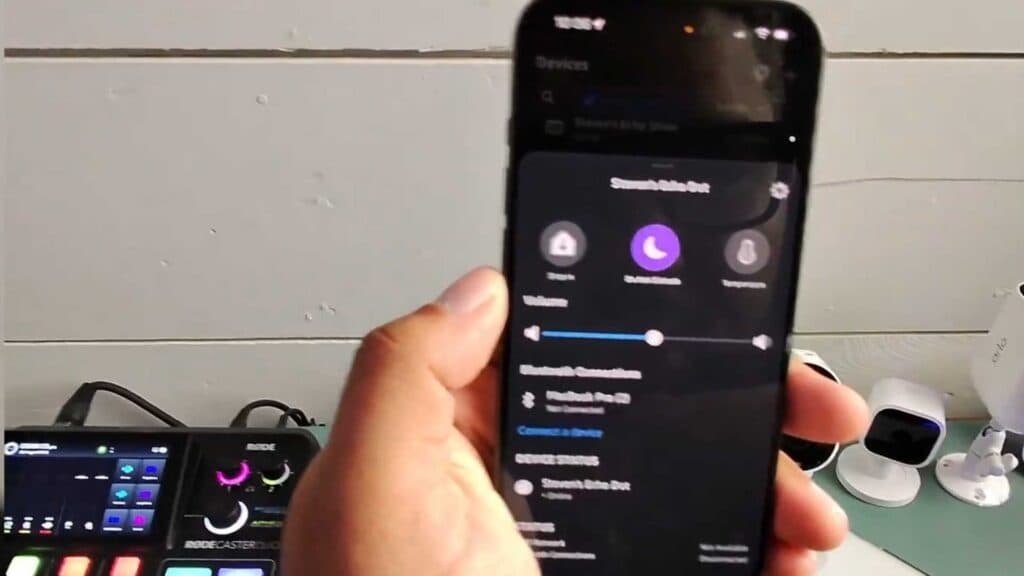
- Open the Alexa app on your phone, go to the Devices tab, select your Echo device, and toggle on the Do Not Disturb switch. [0:23]
- Alternatively, you can enable the feature by asking your device, “Alexa, turn on Do Not Disturb mode.”
- To set a recurring schedule, navigate to the device settings within the app and select the Do Not Disturb section to choose your preferred start and end times. [1:26]
- You can also sync this schedule across other Alexa devices by tapping the sync icon in the settings menu.
- If you prefer to automate your quiet time, you can configure these settings through your Echo routines.
Ninja Tip: Remember that hitting the physical mute button on your Echo only disables the microphone; it does not silence incoming notifications or announcements. To fully stop communication, you must use the digital Do Not Disturb toggle in the app.
If you still receive unwanted alerts, you can perform a factory reset by going to Devices > Echo & Alexa > [Your Device] > Settings > Factory Reset.
Keep Reading


