How to Turn On Closed Captions on a Sony Bravia Android TV

By Sameer,

When you buy through our links, we may earn an affiliate commission.
Your Sony Bravia Android TV is not displaying closed captions for your cable, antenna, or streaming content. You can enable and customize these settings by following a few simple steps.
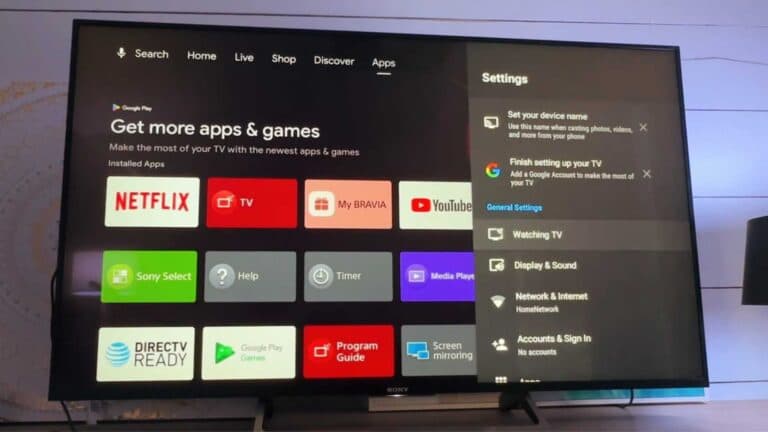
- Press the settings button on your remote to open the settings menu. [0:20]
- Navigate down to Device Preferences. [0:29]
- Scroll down and select Accessibility. [0:36]
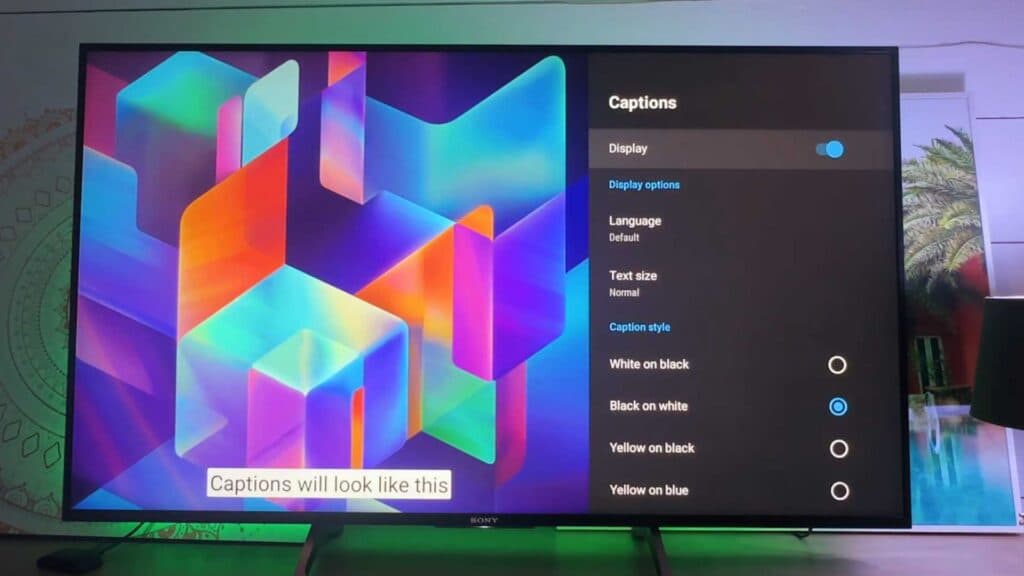
- Select the Captions option at the top of the list. [0:43]
- Choose between Cable/Antenna or Streaming/Other content to toggle the caption display on or off for those specific sources. [0:51]
- If you selected the streaming option, you can further customize the appearance of the text to suit your preferences.
Ninja Tip: Many streaming apps like Netflix or YouTube have their own built-in caption settings that operate independently of your TV’s system settings; check the playback menu within the app if you still don’t see text after enabling the main system captions.
If these steps do not resolve your issue, you can perform a factory reset by navigating to Settings > Device Preferences > About > Factory data reset.
Keep Reading