How to Turn Off Voice Directions in Apple Maps

By Trae Jacobs,

When you buy through our links, we may earn an affiliate commission.
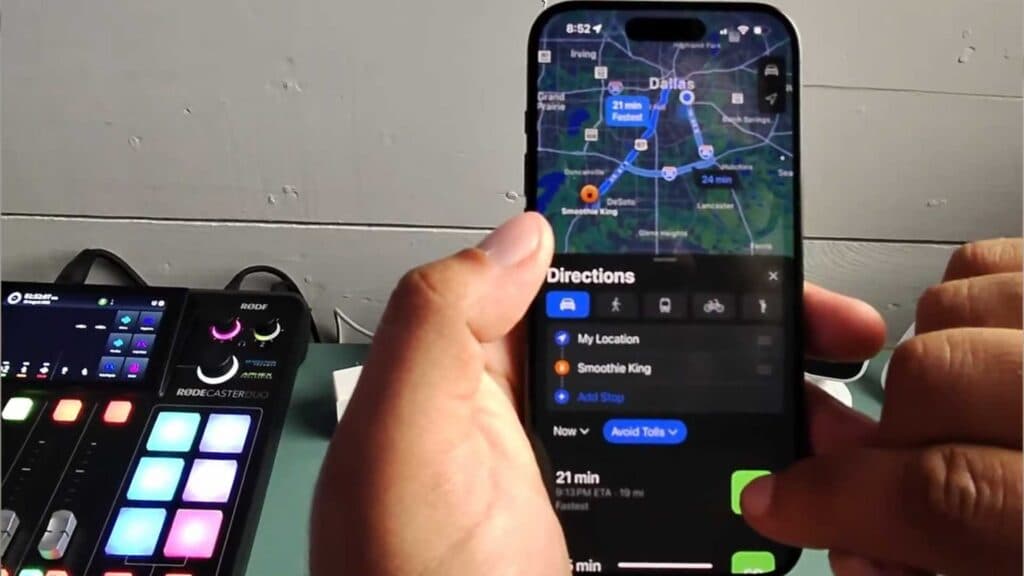
Your iPhone gives you spoken navigation instructions every time you start a route in Apple Maps. You can change your settings to silence these voice prompts while you drive.
- Open Apple Maps and start your navigation by tapping the Go button [0:20].
- Tap the speaker icon on the screen to open the audio menu [0:36].
- Select the option for no voice directions to silence the audio entirely [0:43].
- If you prefer to hear only important updates like alerts, select the middle option [0:46].
- Adjust the volume for your remaining alerts by opening the menu, selecting Voice Volume, and choosing between louder, normal, or softer settings.
Ninja Tip: You can also manage these settings ahead of time in your iPhone’s main Settings app by going to Maps > Spoken Directions and toggling the specific voice options off.
If you still hear audio prompts from a different navigation app, you can reset your preferences by navigating to Settings > General > Transfer or Reset iPhone > Reset > Reset Location & Privacy.
Keep Reading



