How to Turn Off Raise to Listen for iMessage on iPhone

By Trae Jacobs,

When you buy through our links, we may earn an affiliate commission.
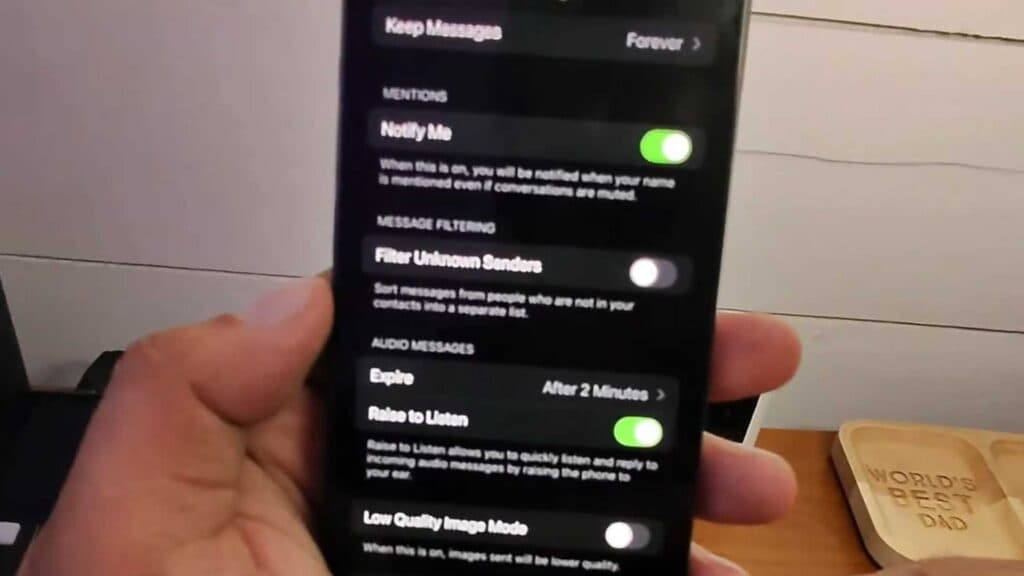
Your iPhone plays audio messages automatically whenever you raise the device to your ear. You can disable this feature in your message settings to stop it from happening.
- Open the Settings app on your iPhone and scroll down to locate the Apps section. [0:36]
- Find and tap on Messages in the list of applications. [0:46]
- Scroll down until you see the Raise to Listen option and toggle the switch to the off position.
Ninja Tip: You can also disable “Raise to Speak” (where available) in the same Messages settings menu to prevent the phone from accidentally recording audio while you move it.
If the issue persists, perform a network settings reset by going to Settings > General > Transfer or Reset iPhone > Reset > Reset Network Settings.
Keep Reading



