How to Turn Off or Manage Ring Camera Notifications

By Trae Jacobs,

When you buy through our links, we may earn an affiliate commission.
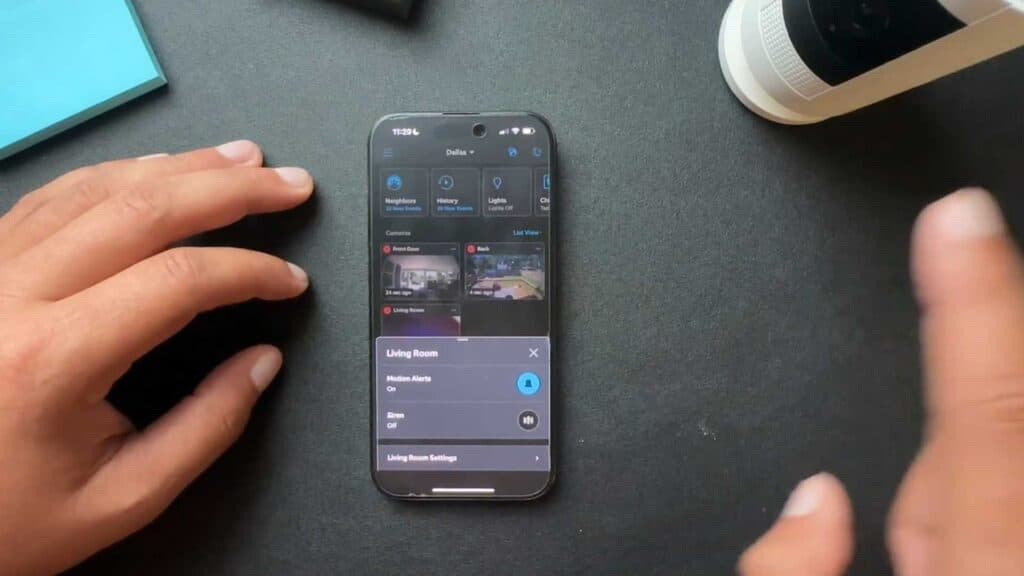
Your Ring camera is constantly recording and sending alerts to your phone. You can take control of these notifications and adjust your privacy settings with a few simple steps.
- Cover the camera lens with a sticky note or close the privacy sleeve if your model includes one to physically block the view [0:10].
- Remove the battery from your device to fully cut the power [0:41].
- Snooze your motion alerts by tapping the three dots in the app, selecting the alarm icon, and choosing your preferred duration [1:14].
- Remove the camera entirely from your Ring account by going to Settings, selecting Device Settings, then General Settings, and finally tapping Remove Device [2:03].
- Set up a motion schedule in the Motion Settings menu to stop notifications from arriving during specific times of the day.
Ninja Tip: Check your router’s app or settings to pause internet access for the camera’s specific MAC address if you want to keep the device powered but offline without removing it from your account.
To perform a full factory reset, navigate to Settings > Device Health > Remove Device then perform the physical
Keep Reading



