How to Turn Off Autoplay on Your Smart TV YouTube App

By Trae Jacobs,

When you buy through our links, we may earn an affiliate commission.
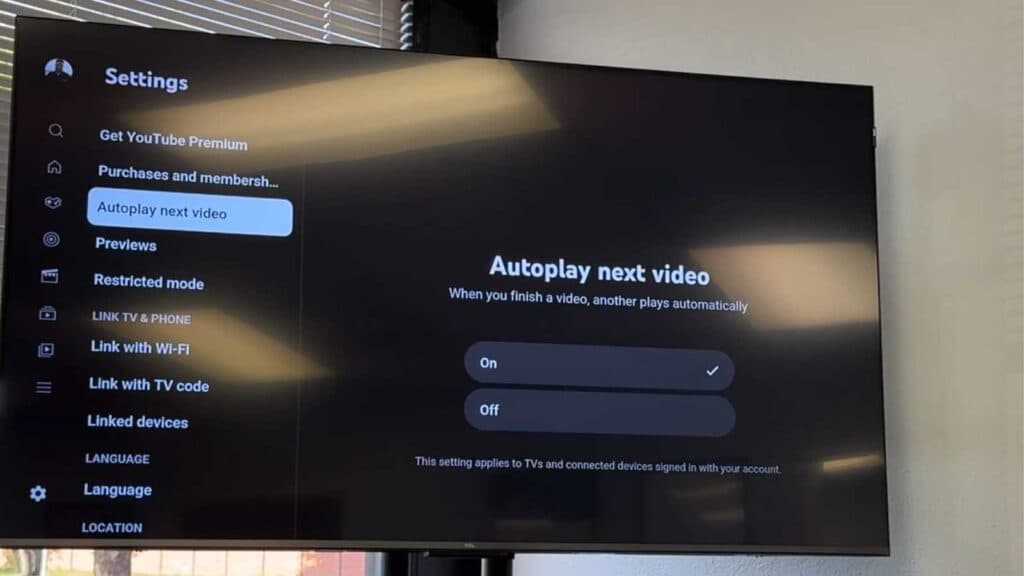
Your YouTube app automatically plays the next video as soon as the current one finishes. You can disable this feature in your settings to stop videos from playing back-to-back.
- Open the YouTube app on your TV and use your remote to scroll over to the side menu. [0:22]
- Select the Settings option from the menu list. [0:26]
- Locate the “Autoplay next video” setting and select it to toggle the feature off. [0:29]
Ninja Tip: You can often find a separate “Autoplay” toggle within the settings menu of individual videos by pressing the down arrow while a video is playing, which allows for quick adjustments without leaving your current screen.
If the autoplay setting continues to behave unexpectedly, you can perform a factory reset by navigating to Settings > System > Advanced system settings.
Keep Reading