How to Turn Off AirDrop on iPhone

By Trae Jacobs,

When you buy through our links, we may earn an affiliate commission.
Your iPhone is currently accepting incoming files from anyone nearby via AirDrop. You can change your settings to stop these unwanted transfers.
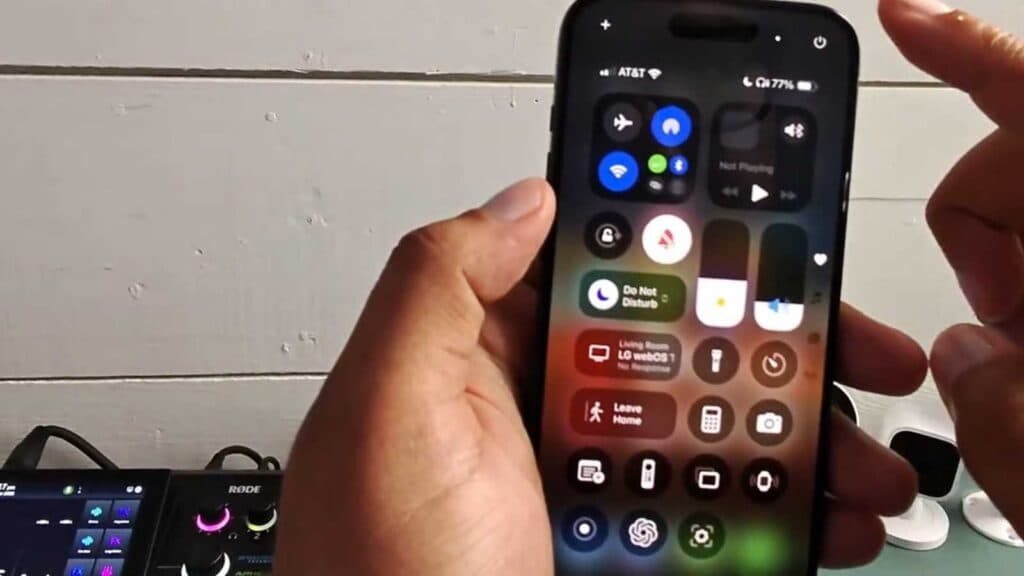
- Swipe down from the upper right-hand corner of your screen to open the Control Center [0:17].
- Locate the connectivity box, which contains the Wi-Fi and Bluetooth toggles, and long-press on that section [0:28].
- Tap the AirDrop icon and select the option to turn receiving off [0:35].
Ninja Tip: If you want to keep AirDrop enabled for trusted people only, select “Contacts Only” instead of turning it off completely, which ensures only people in your address book can send you files. This prevents random people in public spaces from being able to AirDrop files to your device.
If you continue to experience issues with unauthorized file transfers, check for software updates by going to Settings > General > Software Update.
Keep Reading



