How to Troubleshoot Samsung TV HDMI Connection Issues

By Trae Jacobs,

When you buy through our links, we may earn an affiliate commission.
Your Samsung TV is not detecting your HDMI device right now. You can follow these steps to get your signal back.
- Check your remote and make sure the sensor on the TV is not blocked [0:25].
- Test your remote buttons to see if they are actually communicating with the TV [0:39].
- If you use a solar cell remote, try performing a reset on it [1:06].
- Use the physical buttons on the TV to manually change the source to the correct HDMI input [1:26].
- Open the SmartThings app on your phone to control the TV and manage your inputs [2:23].
- Check the settings menu for any available updates for your TV software [4:41].
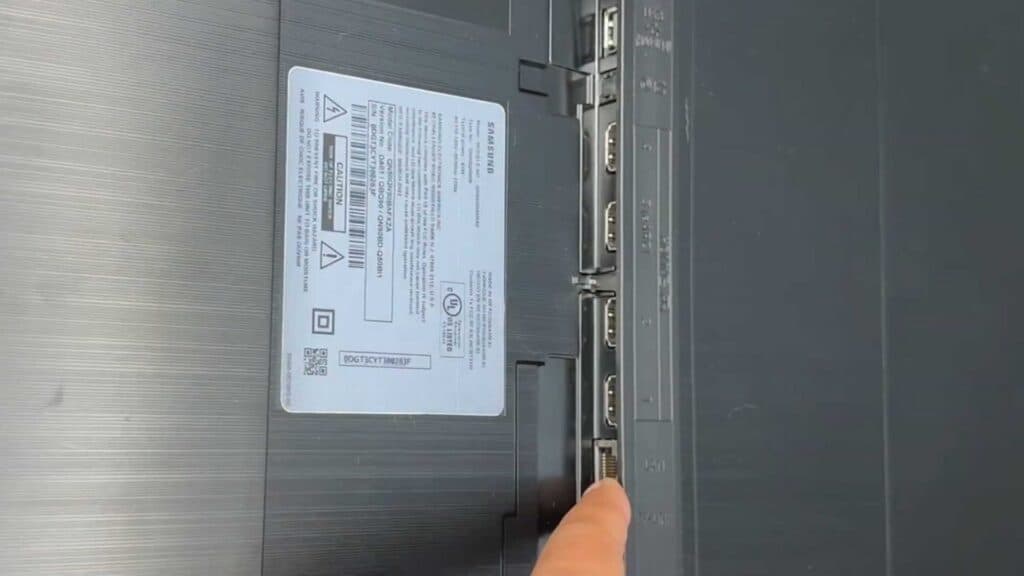
- Inspect your HDMI ports for any visible damage or debris that might be blocking the connection [5:42].
- Restart your TV by unplugging it from the power outlet for thirty seconds before plugging it back in.
Ninja Tip: Check your device’s HDMI-CEC settings, often called Anynet+ on Samsung TVs, to ensure the communication between your devices is not disabled. Turning this feature off and back on can often resolve persistent handshake issues between your console or box and the screen.
If the connection still fails, perform a factory reset through Settings > General > Reset.
Keep Reading


