How to Trim Videos Directly on Your iPhone

By Trae Jacobs,

When you buy through our links, we may earn an affiliate commission.
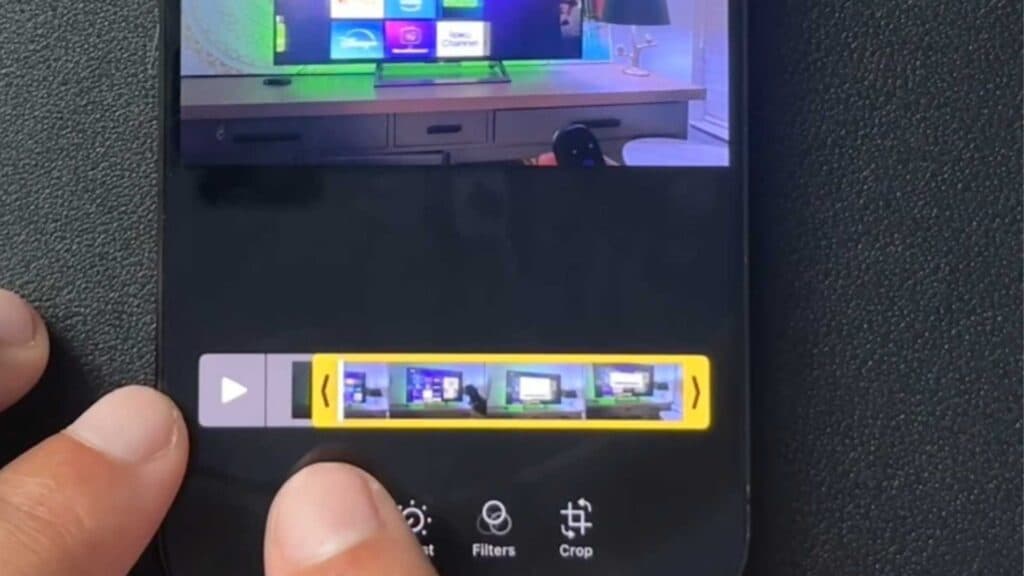
You have unwanted footage at the beginning or end of your iPhone video that you need to remove. You can easily cut these clips directly in your Photos app without needing any extra software.
- Open the video you want to edit from your Photos app and tap the edit icon, which looks like three horizontal lines with circles [0:32].
- Drag the arrows at the beginning or the end of the timeline to adjust where you want the video to start and stop [0:40].
- Tap the “Done” button at the top of the screen once you are satisfied with your adjustments [1:39].
- Select “Save Video as New Clip” to keep your original file while saving the trimmed version as a separate file.
Ninja Tip: If you make a mistake while trimming, you can always revert the changes by opening the edited video, tapping “Edit,” and selecting “Revert” to restore the original footage.
If your Photos app is not working correctly, you can reset your device by going to Settings > General > Transfer or Reset iPhone > Erase All Content and Settings.
Keep Reading



