How to Transfer Nintendo Switch Screenshots and Videos to Your Phone

By Trae Jacobs,

When you buy through our links, we may earn an affiliate commission.
Your Nintendo Switch captures gameplay media that currently stays trapped on the console. You can transfer these images and videos to your smartphone by following these steps.
- Press the Capture button on your controller once for a screenshot, or press and hold it to record up to 30 seconds of video [0:10].
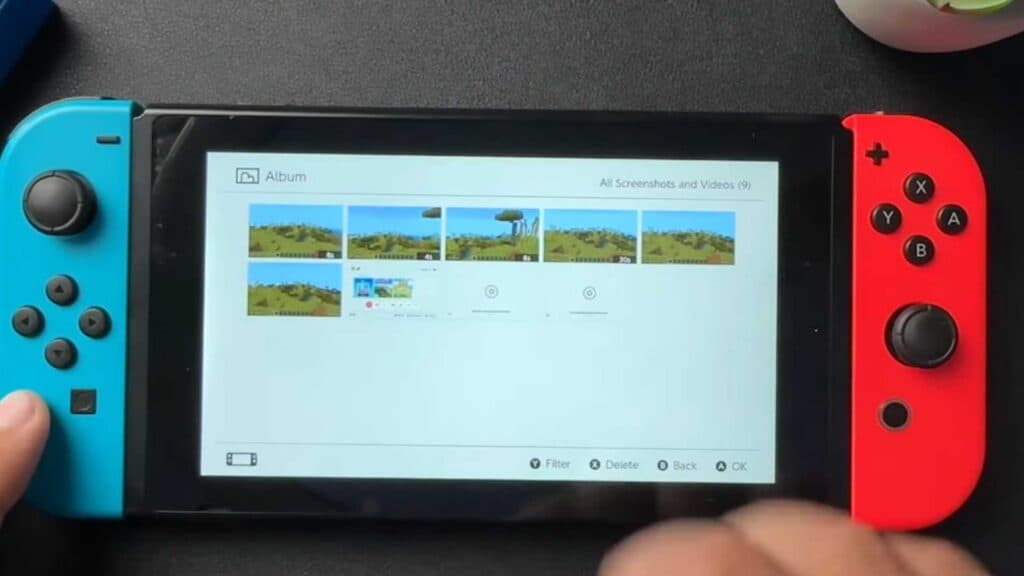
- Navigate to the Home screen and open the Album folder to view your saved media [0:34].
- Select the image or video you want, press the A button for sharing and editing, and then choose Send to Smartphone [0:55].
- Use your phone to scan the QR code on the screen to connect to the Switch’s local network [1:16].
- Scan the second QR code that appears to open the transfer page in your phone’s web browser [1:42].
- Download the file from the webpage and save it directly to your phone’s gallery.
Ninja Tip: You can also use a standard microSD card to move your files to a computer, which is faster if you need to transfer a large batch of clips at once.
If you encounter persistent connection errors, clear your saved network data by going to System Settings > Data Management > Manage Save Data.
Keep Reading