How to Take a Screenshot on iPhone 16

By Trae Jacobs,

When you buy through our links, we may earn an affiliate commission.
You need to capture your screen on your iPhone 16 and aren’t sure how to do it. You can follow these simple steps to take a screenshot using either the physical buttons or the software-based AssistiveTouch feature.
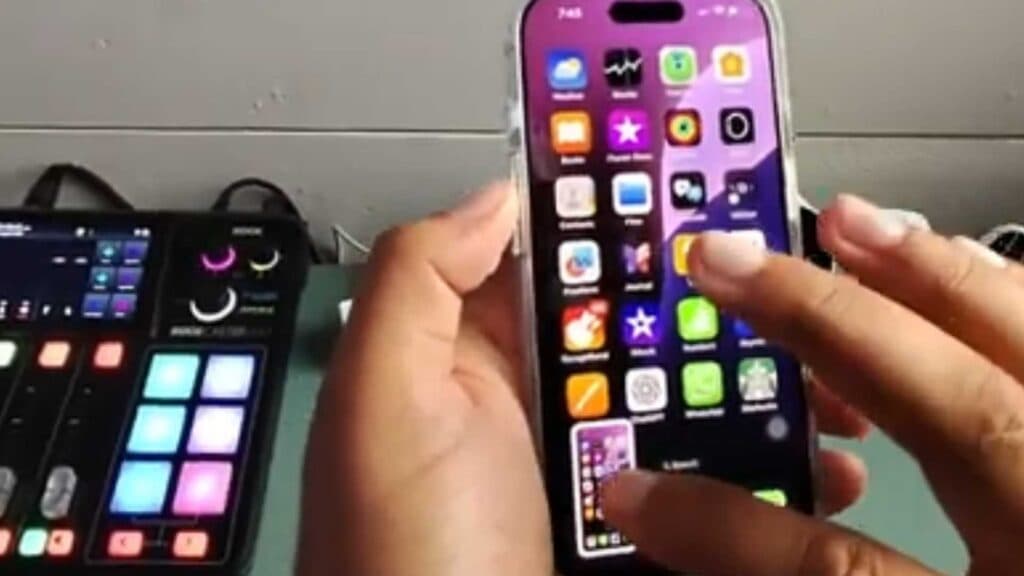
- Press the volume up button and the side button at the same time to capture your screen. [0:15]
- Tap the thumbnail that appears in the corner if you want to edit or draw on your image before saving it. [0:22]
- Open your Settings, go to Accessibility, then select Touch to set up a software-based screenshot option. [1:26]
- Tap AssistiveTouch and toggle the switch to turn it on, which will make an onscreen button appear. [1:41]
- To take a screenshot using this new button, tap the onscreen icon, select Device, tap More, and then choose Screenshot.
Ninja Tip: You can also configure the Back Tap feature by going to Settings > Accessibility > Touch > Back Tap to take a screenshot by simply tapping the back of your phone twice or three times.
If you still face issues with these features, you can perform a factory reset by navigating to Settings > General > Transfer or Reset iPhone > Erase All Content and Settings.
Keep Reading



