How to Take a Screenshot on a Mac

By Trae Jacobs,

When you buy through our links, we may earn an affiliate commission.
Your Mac lacks an obvious way to capture the screen. You can solve this instantly by using built-in keyboard shortcuts.
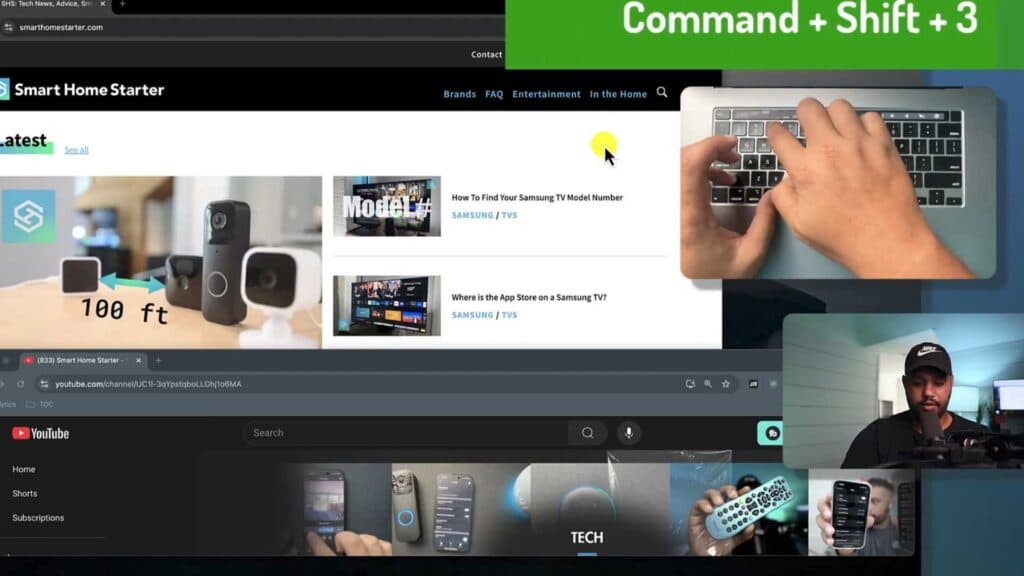
- Press Command + Shift + 3 to capture your entire screen or both displays if you use a multi-monitor setup [0:47].
- Use Command + Shift + 4 to turn your cursor into a crosshair and drag your mouse to select a specific portion of the screen to save [1:26].
- Press Command + Shift + 4 followed by the Space Bar to highlight and capture a specific window or browser tab [2:43].
Ninja Tip: You can press the Escape key at any time before clicking to cancel the screenshot if you change your mind.
If you need to change where these files are saved, go to Screenshot > Options in the floating menu.
Keep Reading



