How to Sync Your Calendar to the Amazon Echo Show 15

By Trae Jacobs,

When you buy through our links, we may earn an affiliate commission.
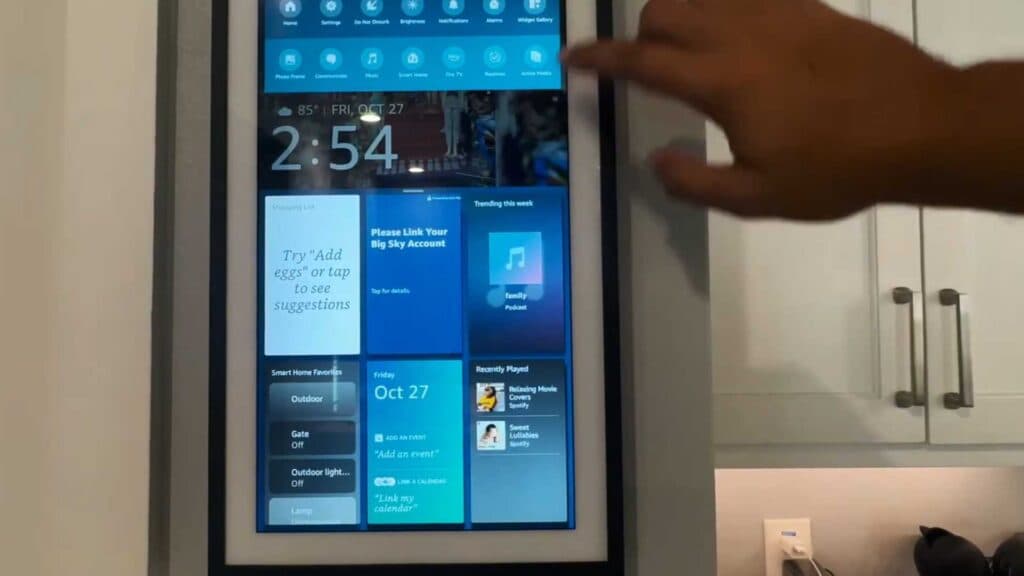
Your Echo Show 15 isn’t showing your schedule right now. You can fix this by linking your calendar account through the device or the Alexa app.
Option 1: Syncing directly on the Echo Show 15
- Swipe down from the top of your device screen to open the menu [0:13].
- Select Settings and scroll down to the Calendar option [0:24].
- Choose your account provider and follow the prompts to enter your email and password [0:46].
- Confirm your account details and grant the necessary permissions to finish the sync [1:07].
Option 2: Syncing via the Alexa App 5. Open the Alexa app on your phone and tap the More section [3:09]. 6. Select the Calendar module and choose your account provider [3:15]. 7. Sign in with your credentials and tap Allow to link your data [3:49]. 8. Select the specific calendar you want to display on your device [3:58].
Ninja Tip: If your events still aren’t appearing, check that your time zone settings match on both your calendar account and your Alexa device. A mismatch here is the most common reason for syncing failures.
If you’re still having trouble, you can perform a factory reset by going to Settings > Device Options > Reset to Factory Defaults.



