How to Switch Between Light and Dark Mode on iPhone

By Trae Jacobs,

When you buy through our links, we may earn an affiliate commission.
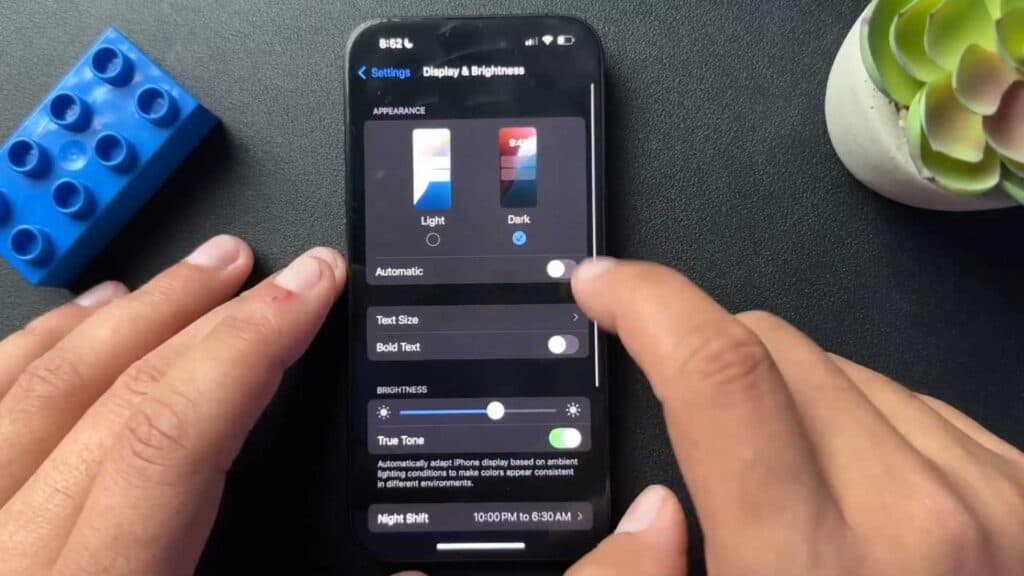
Your iPhone screen is currently set to the wrong appearance mode. You can change this to match your preference or set it to adjust automatically throughout the day.
- Open the Settings app on your iPhone and tap on Display & Brightness [0:16].
- Select either Light or Dark mode to change your appearance settings immediately [0:21].
- Toggle on Automatic if you want your iPhone to switch modes based on the time of day [0:26].
- Choose to have your phone use Light mode until sunset or set your own custom schedule for when the display changes.
Ninja Tip: You can quickly toggle between Light and Dark mode from the Control Center by swiping down from the top-right corner of your screen and long-pressing the brightness slider to reveal the appearance icon.
If you encounter persistent display issues, navigate to Settings > General > Transfer or Reset iPhone > Reset > Reset All Settings.
Keep Reading



