How to Stream Audio from Your iPhone to HomePod and Sonos Speakers Simultaneously

By Trae Jacobs,

When you buy through our links, we may earn an affiliate commission.
Your HomePod and Sonos speakers are not currently playing the same music across your home. You can fix this by using the AirPlay feature on your iPhone to bridge your devices together.
- Open your music streaming app, such as Spotify, and start playing a song [1:01].
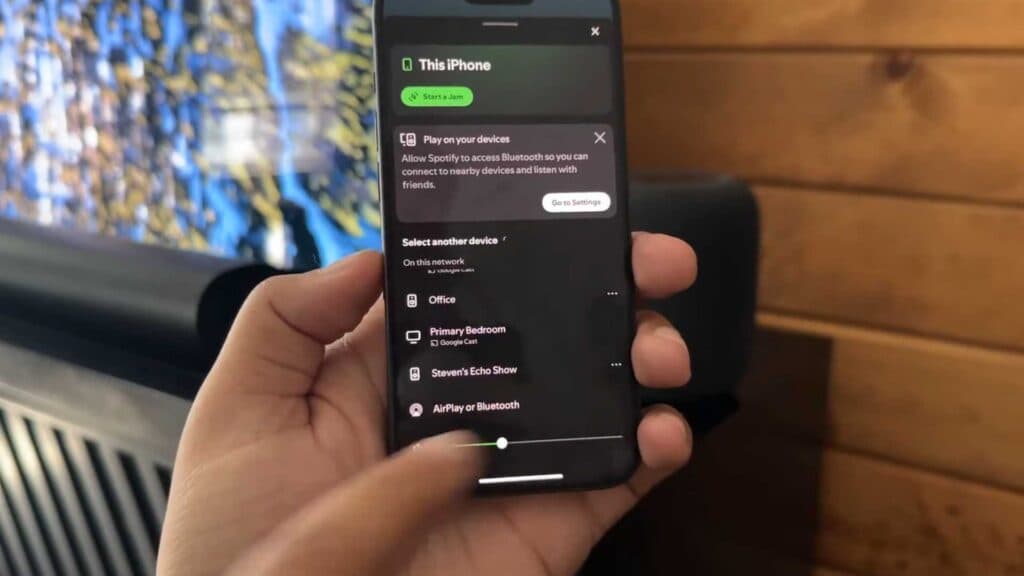
- Locate and tap the AirPlay icon, which usually appears as a speaker or broadcast symbol within the playback screen [1:09].
- Select all the individual HomePod and Sonos speakers you want to include from the list that appears on your screen [1:47].
- Manage your playback, adjust individual speaker volumes, or remove specific devices from the group by swiping down from the top of your iPhone screen and tapping the music control tile [2:40].
Ninja Tip: If you have older, non-AirPlay Sonos speakers, you can still include them in your multi-room audio stream by grouping them with at least one AirPlay-compatible Sonos speaker inside the official Sonos app. Once grouped, the non-AirPlay units will sync perfectly with the rest of your system.
If your speakers fail to show up in the AirPlay menu, perform a power cycle by unplugging each device for 30 seconds before plugging them back in.
Keep Reading



