How to Stop Your TV From Automatically Changing Inputs

By Trae Jacobs,

When you buy through our links, we may earn an affiliate commission.
Your TV is cycling through its inputs on its own. You can resolve this issue by following a few simple troubleshooting steps.
- Clean your remote with a Q-tip and rubbing alcohol to clear out any gunk causing the input button to get stuck [0:30]. You can also use a soft brush to reach inside the button crevices.
- Go into your TV’s device settings and turn off features like Auto Device Detection, HDMI-CEC, or auto-power sync [1:04]. These features often cause connected devices to trigger input changes.
- Move other electronics like speakers or game consoles away from the TV to see if they are causing wireless signal interference [1:48].
- Perform a soft reset by unplugging the TV from the wall for at least one to three minutes to let the electrical charge dissipate [2:09]. Alternatively, you can press and hold the physical power button on the TV itself until it turns off and powers back on [2:29].
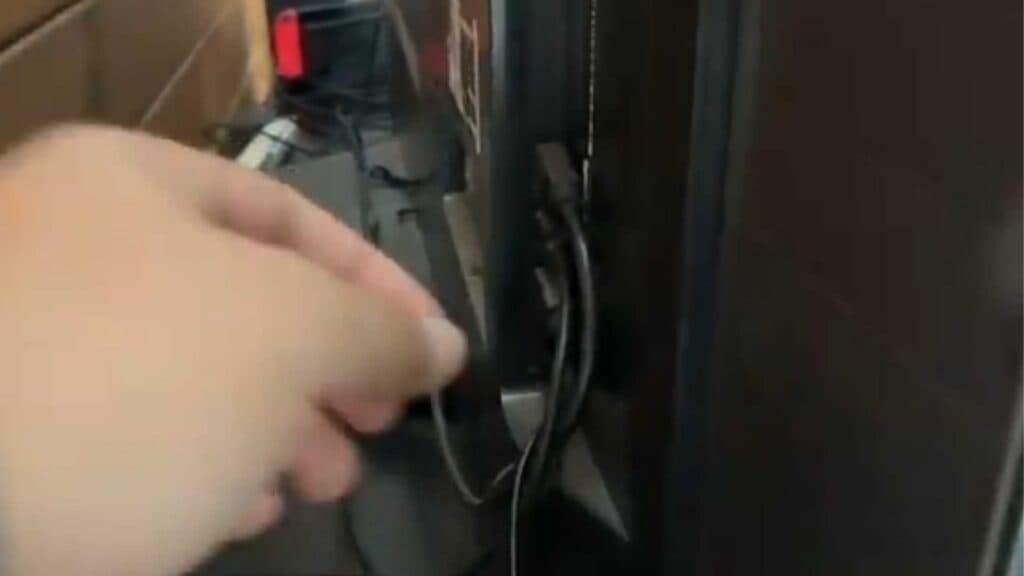
- Inspect your HDMI cables for any signs of damage and ensure they are securely plugged into both the TV and your devices [3:05].
- Perform a factory reset through your TV’s system settings menu if the problem continues.
Ninja Tip: Sometimes bright, direct sunlight or infrared light from LED strip lighting can confuse your TV’s sensor, making it think a remote is being pressed. Try temporarily covering the TV’s IR sensor or blocking the light source to see if the input switching stops.
If these steps do not stop the behavior, your final option is to perform a full factory reset located within your TV’s system or general settings menu.
Keep Reading




